1
OFA Kamel 8 UG E/Fr rev
8/15/03
10:17 AM
Page 6
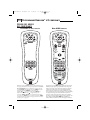
KAMELEON 8-DEVICE REMOTE
FEATURES AND FUNCTIONS
KEY CHARTS (CONTINUED)
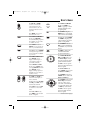
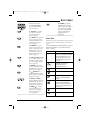
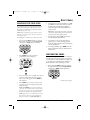
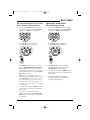
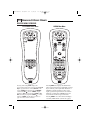
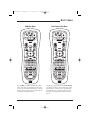
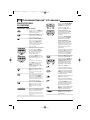
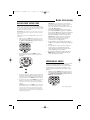
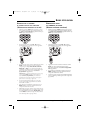
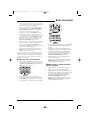
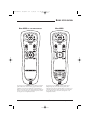
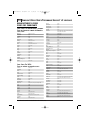
Press MENU once to display
your selected device’s main
menu.
Use EXIT to exit from your
selected device’s guide or
menu.
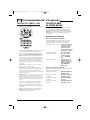
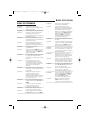
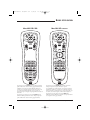
In the DVD or AUDIO mode,
press SUBTITLE once to
display (or turn off)
subtitles, if available on
your DVD or audio device.
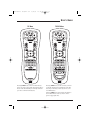
or
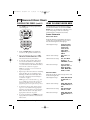
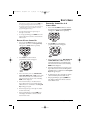
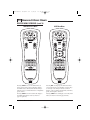
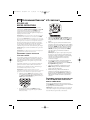
In all modes except AUDIO,
use the Number Keys
(1 ~ 9 and 0) to directly
select channels (e.g., 009
or 031) or enter numbers.
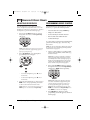
In the AUDIO mode, use the
Number Keys to directly
select inputs 1 ~ 9 and 10.
To enter channels in the
AUDIO mode,press SCROLL
three times to view channel
Number Keys (see above).
Use INPUT to change the
input source for a selected
device.
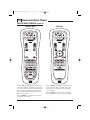
For certain brands in all
modes except CD and
AUDIO, press ENTER once
after entering numbers (if
required on your original
remote control).
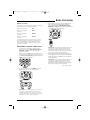
For CD or AUDIO modes,
press SKIP once to skip to
the next track on your
audio device.
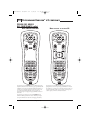
After programming, press
Macro Key 1 ~ 4 once to
run a macro (see Using
Macros on page 16).
6
Features And Functions
or
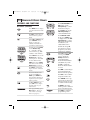
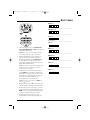
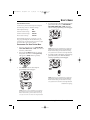
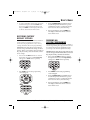
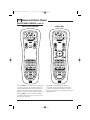
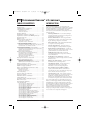
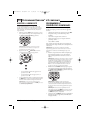
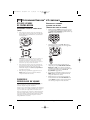
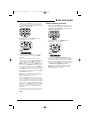
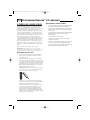
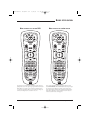
In the CD, DVD, AUDIO, and
VCR modes, use the
Transport Keys to control
the device’s transport.
In the PVR mode, use the
LIVE Transport Keys to
control PVR/DVR video.
In the CBL/SAT or AUX
mode, press SCROLL once
to display and use the LIVE
Transport Keys to control
VOD (Video On Demand)
if available on your
cable/satellite service.
In all modes except TV,
press ● twice to record a
program on your device
(if function is available).
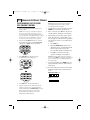
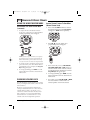
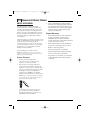
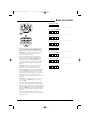
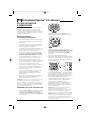
In the TV mode,press PIP
once (or press SCROLL
twice) to display the
PIP Keys.Use them to
control the following
Picture-In-Picture features
(if available) on your TV:
Use PIP to switch the
Picture-In-Picture feature
on or off.
Use SWAP to switch images
and sound between the
main and window pictures.
Use SIZE to select a different picture window size.
Press FREEZE once to capture a frame of video in the
main picture. Press it again
to resume normal viewing.
Use MOVE to move the
window picture to different
places in the main picture.
Use SETUP to enable the
programming screen.