1
3
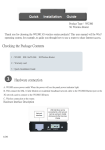
Connect the power adapter to the receptor on the router's back panel and plug the other end of
the power adapter into a wall outlet or power strip.
The WiFi and 3G LEDs on the router's front panel turn on.
4
A computer, mobile phone, game station, or other device with wireless 802.11n, g, or b capability
can access the Internet wirelessly through the 3G router. To make the wireless connection, you
must first locate the wireless network connection setup on your device, and then select the Zoom
network. For example, on Windows computers, click the wireless connection icon on the Task
Bar, click Available Wireless Networks, select Zoom from the list of available wireless networks, and
then make the connection.
5
The router comes set up for wireless with no security. If you want wireless security, you need to
set up the 3G router and each device for the security that you want. If you’re experienced with
wireless, you can probably do that easily by using the Configuration Manager, as discussed in
Changing the Router’s Default Values. You can also get more detailed instructions in the Zoom
3G Wireless-N Router User Guide located on the product CD.
6
You can also plug a computer or other device into the router’s Ethernet port. This is
recommended if you’re changing the router’s default values, and sometimes an Ethernet
connection is more convenient or secure than connecting to the router wirelessly. To connect a
computer via Ethernet, simply plug the supplied Ethernet cable between the router’s Ethernet
LAN port and your computer’s Ethernet port.
7
To test the router when 3G is on, connect a device that has a Web browser to the router using
wireless or Ethernet as discussed above. Then check that the device’s Web browser works. If it
doesn’t work, check that the router is on, connected to 3G service via a 3G modem, and
connected to your device’s browser via wireless or Ethernet. If you still have problems
connecting, you should run the Setup Wizard that’s in the router’s Configuration Manager. See
below and your User Manual for details.
Changing the Router's Default Values
Your Zoom 3G Wireless-N Router is preset with default values that meet the needs of most users.
However, you can change these settings by using the router's built-in Configuration Manager. Here are
some reasons why you might want to use the Configuration Manager:
•
You want to change wireless n/g/b settings to, for instance, enable wireless security.
•
You want to connect the router to your ADSL or cable modem. You can do this while
using your 3G modem as a backup Internet connection, or you can do it without a 3G
modem plugged in.
•
You do not want your 3G connection to be on whenever the 3G modem is plugged into
the router. The default value is Auto Reconnect (always on). You can change the default
value and specify when to begin (and end) a session.
•
You want to change router settings to, for instance, establish a firewall to guard
against unauthorized access to your network.
•
You want to back up router settings that you made using the Configuration Manager.
To use the Configuration Manager, please follow these steps:
2
1
Connect the supplied Ethernet cable to the Ethernet ports on the router and computer.
2
In the computer's Web browser address bar, type http://192.168.1.1 and then click Enter.
When the USER'S MAIN MENU opens, it displays a Status page that lists the current values for a
variety of settings.
3
On the window's Toolbar, type admin in the System Password field, then click Login.