1
◈ Specifications
Item
Printing Method
180 dpi (7dots/mm)
Printing Width
Characters per line(Default)
72mm
42 (Font A) / 56 (Font B) / 56(Font C)
47.28 lines/sec
200 mm/sec
4K Bytes
Receive Buffer Size
Paper
Thermal Line Printing
Dot Density
Printing Speed *1)
Printer
Details
SMPS Input Voltage
100~240 VAC
Frequency
50/60 Hz
SMPS Output Voltage
24 VDC
Temperature
0 ~ 45 ℃ (Operating)
-20 ~ 60 ℃ (Storage)
Humidity
10 ~ 80 % RH (Operating)
10 ~ 90 % RH (Storage)
; Except for paper
Auto Cutter
1,500,000 Cuts
Mechanism MCBF *2)
60,000,000 Lines
Paper Type
Paper Roll
Roll Width
79.5±0.5 mm
Roll Diameter
Max 80mm
Paper Thickness
0.062~0.075 mm
Inner: Ø12mm (0.47”)
Outer: Ø18mm (0.71”)
Paper Tube
※ Note
*1) Printing speed may be slower depending on the data transmission speed and the
combination of control commands.
◈ Installing Windows Driver for the Printer with
Serial(RS-232C) Interface
1. Run Win SRP-330_Vx.x.x.exe.
2. Select the Next button from the initial installation window.
3. Select one of serial port in Serial Port section from the Port Type window, and select the
Next button.
◈ Installing Windows Driver for the Printer with
Parallel (IEEE1284) Interface
1. Run Win SRP-330_Vx.x.x.exe.
2. Select the Next button from initial installation window.
3. Select one from Parallel Port section of the Port Type window, and select the Next
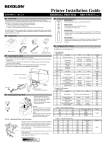
button (refer to Fig 1).
4. Select Yes and restart the computer (refer to Fig 2).
5. After restarting the computer, select Start > Settings > Printers and Faxes > BIXOLON
SRP-330 Icon > Right Mouse Click > Properties.
6. Select General tab from the Properties window and select Print Test Page to check
whether printer setup has been done correctly.
◈ Installing Windows Driver for the Printer with
USB Interface
1. Run Win SRP-330_Vx.x.x.exe.
2. Select the Next button from initial installation window.
3. Select USB from the Port Type window, and select the Next button (refer to Fig 1).
4. Turn the printer off and on, and click the OK button
5. After restarting the computer, select Start > Settings > Printers and Faxes > BIXOLON
SRP-330 Icon > Right Mouse Click > Properties.
6 Select General tab from the Properties window and select Print Test Page to check
whether printer setup has been done correctly.
◈ Installing Windows Driver for the Printer with
Ethernet Interface
Refer to the separate Ethernet Interface Card User’s Manual. (Refer to CD)
◈ WEEE (Waste Electrical and Electric Equipment)
This marking shown on the product or its literature, indicates that is should not be
disposed with other household wastes at the end of its working life, To prevent
possible harm to the environment or human health from uncontrolled waste disposal,
please separate this from other types of wastes and recycle it responsibly to promote
the sustainable reuse of material resources. Household users should contact either the
retailer where they purchased this product, or their local government office, for details
of where and how they can take this item for environmentally safe recycling. Business
users should contact their supplier and check the terms and conditions of the purchase
contract. This product should not be mixed with other commercial wastes for disposal.
☎ BIXOLON Co., Ltd.
● Website http://www.bixolon.com
(Fig 1)
4. Select Yes and restart the computer.
● Korea Headquarters
(Add) 7~8F, (Sampyeong-dong), 20, Pangyoyeok-ro241beon-gil,
Bundang-gu, Seongnam-si, Gyeonggi-do, 463-400, Korea (ROK)
(Tel.) +82-31-218-5500
● U.S. Office
(Add) BIXOLON America Inc., 3171 Fujita St, Torrance, CA 90505
(Tel.) +1-858 764 4580
● Europe Office
(Add) BIXOLON Europe GmbH, Tiefenbroicher Weg 35 40472 Düsseldorf
(Tel.) +49 (0)211 68 78 54 0
(Fig 2)
5. After restarting the computer, select Start Menu > Settings > Printers and Faxes >
BIXOLON SRP-330 icon > Right Mouse Click > Properties.
6. Select the Port tab and Port Settings from the Properties windows, set the parameters
reported from the self-test result, and select the OK button.