1
Creating and Installing a Dropbox Account In order to use nCrypted Cloud, you must first have Dropbox installed. If you do not have a Dropbox
Account, please follow the instructions below to create one.
How to Create a Dropbox Account
1. Go to (https://www.dropbox.com/login?lhs_type=anywhere)
2. Enter your Name, Email, and Password to create an account
3. You will be redirected to the Dropbox Install page
Now that you have a Dropbox account, follow these steps to install Dropbox onto your computer.
How to Install Dropbox
1. Go to the Dropbox Install Website (https://www.dropbox.com/install) if you were not
already re-directed there and click “Free Download”
2. Click on the .dmg file that you just downloaded to run the Dropbox Installer
3. Double-click on the Dropbox icon to install
4. The Dropbox icon will appear in your menu bar
You have just successfully downloaded Dropbox. To sign into your Dropbox account, follow these
steps to register and sign into your account.
How to Register and Sign into Dropbox
1. Open Dropbox by double clicking the Dropbox icon in your menu bar
2. A pop up window will appear-- select “I already have a Dropbox account”
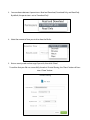
3. Sign in using the email and password you just set up, verify your computer name, and click
Continue
4. Choose your desired Dropbox Plan (2GB: free, 00gb $10/month; 200gb: $20/month) and
click continue
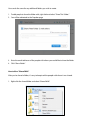
5. Choose Typical or Advanced Setup, then Click Install
6. If you would like to Install Dropbox on your mobile phone, enter your mobile number and
click Continue
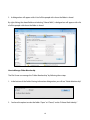
7. Continue through the Dropbox Tour and click Finish
Now that you have registered for a Dropbox account and installed the software, you can now
download and register for nCryptedCloud by following these instructions.
3