1
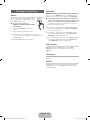
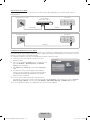
How to view the e-Manual You can find instructions for your TV’s features in the e-Manual in your TV. To use the e-Manual, press the E-MANUAL button on your remote. Move the cursor using the u / d / l / r buttons to highlight a category, then a topic, and then press the ENTERE button. The e-Manual displays the page you want to see. You can also access it through the menu: E-MANUAL O MENUm → Support → e-Manual → ENTERE ✎ If you want to return to the e-Manual, press the E-MANUAL button on your remote. ✎ You cannot use Try Now function if the menu is not activated. Screen Display TV Screen: Displays the program, movie, video, etc. you are currently watching. The category list. Press l or r button to select the category you want. Basic Features Changing the Preset Picture Mode Adjusting Picture Settings Displays the sub-menu list. Use the arrow buttons on your remote to move the cursor. Press the ENTERE button to select the submenu you want. Changing the Picture Size Changing the Picture Options Setting up the TV with Your PC Help: Displays the e-Manual Guide or Product Guide. Press ENTERE button. Help Index Index: Displays the Index screen. X: Exit the e-Manual. Using the Help Display the e-Manual Guide & the Product Guide by pressing Help. How to view the e-Manual You can find instructions about your TV’s features in the e-Manual in your TV. To use, press the E-MANUAL button on your remote. Move the cursor using the u / d / l / r buttons to highlight a category, then a topic, and then press the ENTERE button. The e-Manual displays page you want to see. You can also access it through the menu: Basic Features Sync media from multiple devices with AllShare AllShare™ syncs your digital devices so you can enjoy music, movies and photos from your PC, camera and mobile devices, on your larger TV screen. Connects you to multiple PCs, as well. Changing the Preset Picture Mode Adjusting Picture Settings Changing the Picture Size Changing the Picture Options Setting up the TV with Your PC Help Index O MENUm → Support → e-Manual → ENTERE N If you want to return to the e-Manual, press the E-MANUAL button on your remote. N You cannot use Try Now function if the menu is not activated. Return Return <e-Manual Guide> The e-Manual guide appears as above. <Product Guide> The product guide appears as above. How to toggle between an e-Manual topic and the corresponding OSD menu(s). Picture Basic Features > Changing the Preset Picture Mode (1/1) Picture Mode Changing the Preset Picture Mode ■ Try Now Picture Mode t Select your preferred picture type. N In PC mode, you can only select Entertain and Standard. • Dynamic: Suitable for a bright room. • Standard: Suitable for a normal environment. • Natural for LED TV / Relax for PDP TV : Suitable for reducing eye strain. • Movie: Suitable for watching movies in a dark room. E-MANUAL • Entertain: Suitable for watching movies and games. Standard Backlight 14 Contrast 100 Brightness 45 Sharpness 50 Color Help Try Now Home Zoom Tint (G/R) Index 50 G 50 R 50 ✎ This function is not enabled in some menus. English - 17 [UD5550-ZA]BN68-03372A-00Eng.indb 17 2011-01-20 오후 9:34:02