1
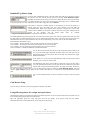
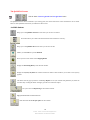
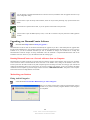
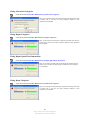
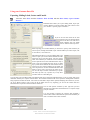
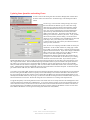
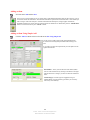
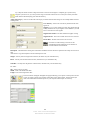
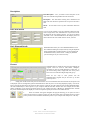
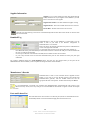
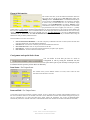
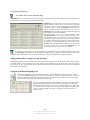
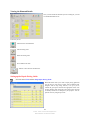
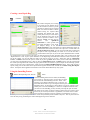
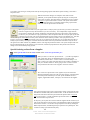
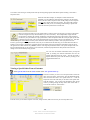
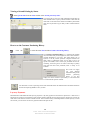
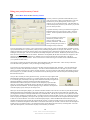
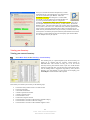
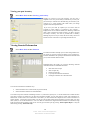
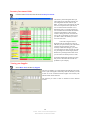
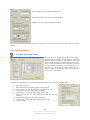
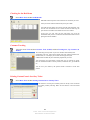
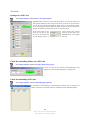
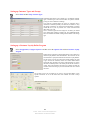
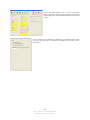
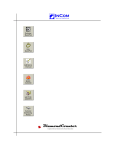
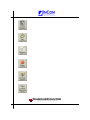
Symbols used in this manual Shows you how to get to a certain function Step-by-Step instructions Important Note Instructions for if you are using a barcode scanner Understanding the different fields in DiamondCounter When you look at the detail screens of customers, item etc you will notice, that the text fields are of different colour throughout the program. They have basically in general three meanings: GREEN – you are required to enter some value in this field before you can proceed, for example when entering a customer you must at least enter the last name of this customer bore you can add the customer to the database. WHITE – these fields are optional and can be left empty if you wish, for example, you do not need to enter all the information of a customer, such as street and phone numbers in order to add this customer to the database. YELLOW – these fields are not ready to be edited or they are being filled from DiamondCounter itself. You cannot edit yellow fields. RED – Something is entered incorrectly in the field. You must find out what has been entered incorrectly and fix it before moving on. A word about QuickLinks QuickLinks are used throughout DiamondCounter to interconnect all the databases with each other and give details of customers or items when selected. QuickLinks can usually be used by double clicking on a table (such as customer lists in the QuickPick customer screen) or by double clicking on QuickLink icons. If a QuickLink icon is active the mouse pointer will change and display a different mouse icon once you are over a QuickLink icon. These icons are used throughout DiamondCounter. QuickLink makes it very easy to jump between screens and see related information. If you, for example, are viewing the item detail screen you might see a customer QuickLink icon. By using this QuickLink you would see customer related information on this item, such as who bought it or who it is on hold for. You might also see the QuickLink icon for a part. If you follow this link, DiamondCounter would display part related information of this item, such as what parts are associated with it. QuickLink will display the details of the associated Customer QuickLink will display the details of the associated Item QuickLink will display the details of the associated Supplier QuickLink will display the details of the associated Part QuickLink will display the details of the associated Loose Stone QuickLink will display the details of the associated Repair Bag QuickLink will display the details of the associated Receipt 11 © 2002 - 2008 - InCom Technical Solutions Inc. DiamondCounter User Manual 9th Edition