1
4: Installation on a Server or Stand-alone Computer
The steps in this section cover installing a new copy of the Cornerstone* Practice Management System
from in the following installation environments:
•
Server
•
Remote Desktop Services/Terminal Services server
•
Stand-alone computer (if you have Cornerstone on only one computer)
If you have more than one computer on your Cornerstone network, you need to install Cornerstone 8.3
on the server first. Then, see chapter 6, “Installation on Workstations,” starting on page 15 for
information on the proper installation procedures for Cornerstone workstations.
IMPORTANT: You will need to restart the server/standalone computer as part of this process.
Begin an upgrade over the internet (with IDEXX SmartService* Solutions)
When a new Cornerstone update is available, it downloads automatically to your Cornerstone server
computer (or stand-alone computer). Once an update is received, all Cornerstone administrators receive
a message when they log in notifying them that an update is available.
A yellow
notification icon appears on the Cornerstone status bar (lower right) and remains there as a
reminder until the update is installed.
1. Double-click the Update Launcher
icon on the desktop.
2. On the Cornerstone Update Available dialog box, click Install.
3. Follow the prompts to install the Cornerstone update.
Note: During installation, Windows or your anti-virus software may display messages that ask for
your interaction. Please respond to these prompts appropriately. In some situations, certain kinds of
anti-virus and/or firewall software may need to be temporarily disabled or put into a specific mode
for installations. (IDEXX recommends a hardware firewall.)
4. When the installation is complete, click Finish to restart the server. This may take a few moments.
5. Once the server has been restarted, log in to Windows.
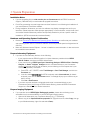
Update your database
1. After completing the Cornerstone 8.3 installation and restarting your computer, log on to the server,
Remote Desktop Services/Terminal Services server, or stand-alone computer as usual.
2. Do the following to start up the database:
•
If you are installing on a Remote Desktop Services/Terminal Services server, start the database
manually by double-clicking the Cornerstone Database icon
on your desktop.
•
If you are installing on a server or standalone computer, the database should start
automatically. However, if you do not see the SQL
icon in the notification area on your
taskbar, start the database manually by double-clicking the Cornerstone Database Server icon
on your desktop.
The IDEXX Database and Services window appears, and displays a list of starting and stopping
activities. After a few moments, the Starting Cornerstone Database message appears, along with a
Cornerstone 8.3 Getting Started Guide for Installing from Download
13