1
3.
4.
5.
Your Access Point is now configured with the basic setting to be implemented as a fixed wireless
Access Point in a WISP environment or WiFi Access Point for mobile wireless client users.
At this point you may test your AIRETHER wireless connectivity with your wireless equipment by
configuring your wireless equipment’s SSID to match the SSID of the Access Point. Minimum
recommended separation between the AIRETHER SB54 or BR54 and wireless client bridge
devices is 10 feet to achieve optimal performance.
To verify your wireless device association with the AIRETHER SB54 or BR54 you have just
configured, login to your AIRETHER unit and open up the web administration GUI menu Wireless
Station list. If both the access point and wireless client bridge are configured correctly, the MAC
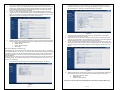
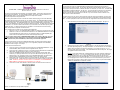
address of the wireless client will appear in the Client List. See Figure 4.
8.
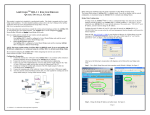
Select the menu item “Network” on the top to customize the Client’s SSID, Operating frequency,
and signal modulation. It is recommended to use a descriptive SSID to identify the wireless
coverage area provided by the SC54. Click Apply after changing the settings. Your SC54 unit
will reboot at this point. See Figure 6 for graphical reference of this section.
Figure 6
9.
Figure 4
6.
Additional configuration is recommended to achieve a secure and robust wireless infrastructure.
Please reference to the AIRETHER user manual for the following optional Access Point settings.
a.
Default Admin password change
b.
Wireless Security
c.
Wireless Advanced Settings
d.
MAC Filtering
10.
11.
Your Client is now configured with the basic setting to be implemented as a fixed Customer
Premises Equipment in a WISP environment.
At this point you may test your SC54 for wireless connectivity with your wireless equipment by
configuring your SC54’s SSID to match the SSID of the AP. Minimum recommended separation
between the SC54 and the AP is 10 feet to achieve optimal performance.
To verify your wireless device association with the SC54 you have just configured, login to the
SC54 and open up the web administration GUI menu Wireless Station list. If both the SC54 and
the AP are configured correct, the MAC address of the AP will appear in the Site Survey. See
Figure 7.
SC54 CLIENT BRIDGE CONFIGURATION
The AirEther SC54 can only act as a stand-alone client and only has one mode of operation. The AirEther
SC54‘s default IP address is “192.168.1.20”. It is recommended to change the SC54’s IP address which best
accommodate your setup. Not changing the default IP address of the AP may result in IP address conflict
with other network devices on the LAN. If you are uncertain of which IP address to use, please consult a
network administrator.
To initially configure your SC54 you will need to type the default IP address ‘192.168.1.20 into the URL of an
internet explorer page. This will open the login prompt for user name and password. Enter “root” for user
name and “root” for password.
7.
Once authenticated, the administrator menu System Summary will appear. See figure 5.
Figure 7
12.
Additional configuration is recommended to achieve a secure and robust wireless infrastructure.
Please reference to the SC54 series user manual for the following optional CPE settings.
a.
Default Admin password change
b.
Wireless Security
c.
Wireless Advanced Settings
Please refer to the Users Manual for detailed Repeater, Client Bridge, and Bridge Mode set up.
Figure 5
- Page 3 -
- Page 4 -