1
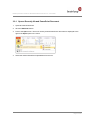
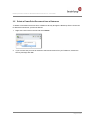
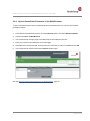
Brainloop Secure Connector for Microsoft PowerPoint Version 4.5 – User Guide 1 Welcome to the Brainloop Secure Connector for Microsoft PowerPoint The Brainloop Secure Connector for Microsoft PowerPoint is a client-based software program that seamlessly integrates Microsoft PowerPoint with the Brainloop Secure Dataroom. This allows you to securely work on PowerPoint documents with parties who do not have access to your company's Intranet. The Brainloop Secure Connector for Microsoft PowerPoint enables you to safely navigate Datarooms from within Microsoft PowerPoint, to open and save PowerPoint files directly from and to the Dataroom. Depending on your Dataroom permissions, you can also check PowerPoint documents out from and back into the Dataroom and send tasks to your collaborators. In detail, the Brainloop Secure Connector for Microsoft PowerPoint offers the following features: Brainloop function on Home ribbon The Brainloop Secure Connector for Microsoft Office offers a Brainloop menu that is displayed in the Home ribbon of Microsoft PowerPoint. The Brainloop menu in Microsoft PowerPoint shares the server connection configuration with the Brainloop Secure Connector for Microsoft Outlook. Upload a PowerPoint document into a Dataroom Click the Brainloop button in the Home ribbon and select Save to upload the currently opened PowerPoint document to a Dataroom. In the Save Document in Dataroom pane, you can navigate to the desired Dataroom folder and enter a filename. By activating the Save as PDF option, you can save your PowerPoint spreadsheet in PDF format directly. Download and edit a PowerPoint document from a Dataroom Click the Brainloop button in the Home ribbon and click Open. In the Open Document from Dataroom pane, you can navigate your Dataroom folders to select the desired PowerPoint spreadsheet. Press Ctrl+S or select Save from the Brainloop control button to save your changes back to the Dataroom. Alternatively, you can open a recently opened PowerPoint document by mouse over on the Open menu in the Brainloop control. The list of recently viewed PowerPoint documents is displayed to the right. View or modify document properties When you are working on a PowerPoint document in a Dataroom, click Show properties in the Brainloop control button. In the Document Properties pane, you can view and change the document description, if applicable. For newly created documents you can also change the document name. In addition, you can see the Dataroom access path, the document status, the Page 3 of 25