1
Brainloop Secure Connector for Microsoft PowerPoint Version 4.5 – User Guide
3.11 Check a PowerPoint Document back into the Dataroom
When you check a document back in, your updated version is transferred to the Dataroom. The
document is unlocked so that other users can check it out and edit it. Note: The document is
automatically checked in when it is closed.
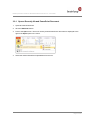
1. Click the Dataroom button and select the Check In option.
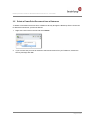
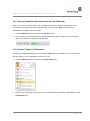
2. The document is now checked into the selected Dataroom folder. A progress bar in the bottom
right corner shows the progress of that operation:
3.12 Create a Task for Collaborators
Provided your Dataroom Manager has activated the Task option for the Dataroom, you can create a
task and send it to your collaborators via secure e-mail:
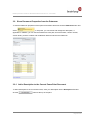
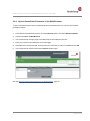
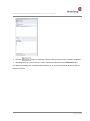
1. Click the Dataroom button and select the Create Task option.
2. Enter a name, description and due date for the task and select the desired collaborators from the
Collaborators list.
Page 23 of 25