1
Alarm Monitoring User Guide
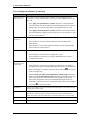
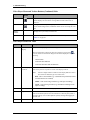
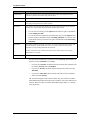
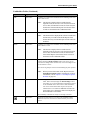
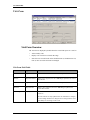
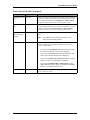
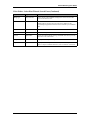
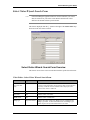
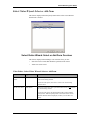
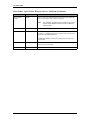
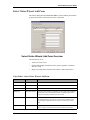
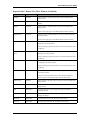
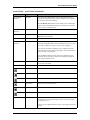
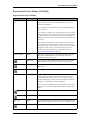
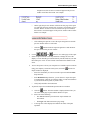
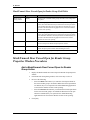
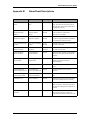
Reports Folder - Date/Time Reports Form (Continued)
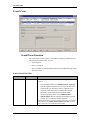
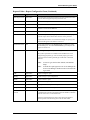
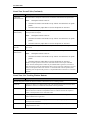
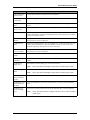
Form Element
Type
Comment
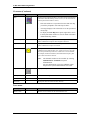
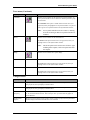
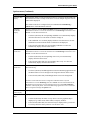
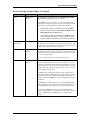
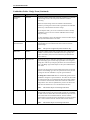
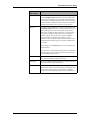
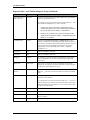
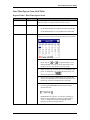
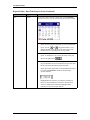
Apply start and end
time to each day
checkbox
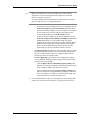
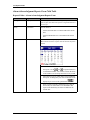
If selected, the specified time range will be applied to any date that falls
within the specified date range.
For example, if you specify a Date/Time Filter starting January 1, 1998
at 8:00 AM and ending March 31, 1998 at 7:00 PM:
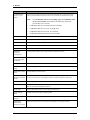
•
If this box is checked, the report will include only data
collected during the hours of 8:00 AM through 7:00 PM, on
any and all days between January 1 and March 31.
•
If this box is not checked, the report will include all data
gathered from 8:00 AM on January 1 straight through until
March 31 at 7:00 PM.
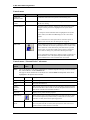
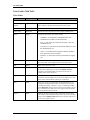
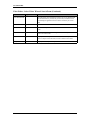
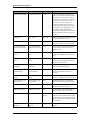
Badge ID
numeric
If you wish to report on the activity associated with a specific badge,
enter the Badge ID here. This field is available only for applicable
report types.
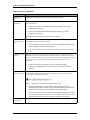
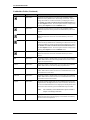
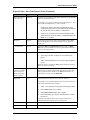
Text Field Filter
section
Includes the Where and Match criteria fields, as well as a Blank
field. This section is enabled only when a report that allows filtering is
selected in the listing window.
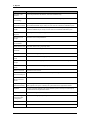
Where
drop-down list
You can now add a text filter to the following:
•
Action Type, Details, or Object for User Transactions
reports
•
Alarm Acknowledgment text for Alarm Acknowledgments
reports
When this section is enabled, the Where field contains the attribute in
B.A.S.I.S. that is to be filtered.
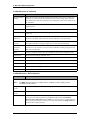
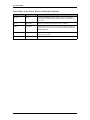
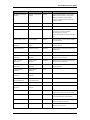
Match criteria (Set to
Contains by default.
May also be set to
Begins With, Ends
With, or Equals)
drop-down list
If enabled, the Match criteria drop-down list may be changed from its
default value of contains to Begins With, Ends With, or Equals. This
setting specifies how the selection in the Where field relates to the
value entered to search for in the Blank field.
Blank field
text
In this field, type the value you wish to filter or search for.
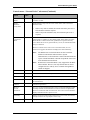
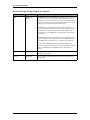
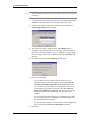
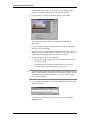
For example, if you wanted to display all User Transactions associated
with System Administration, you should:
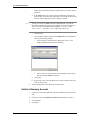
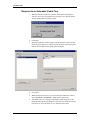
1.
Select a User Transaction Log report in the listing window.
2.
In the Where field, select “Object”.
3.
In the Match criteria field, select “Equals”.
4.
In the blank field, type “System Administration” (without
the quotes).
Click [Preview], and only those entries associated with System
Administration will be displayed in the resulting report.
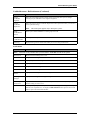
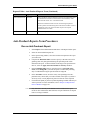
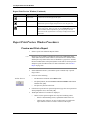
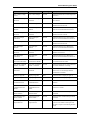
Clear
push button
Clears all current filter criteria.
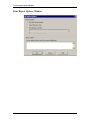
Print
push button
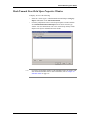
Displays the Print Report Options window.
revision 105 — 261