1
User Manual: e-tool; Construction Development Board
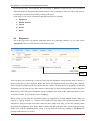
Once you are finished entering the details of the equipment, click on the “Back” button on the left side of the
page. You will be taken back to the Evaluation page where you need to now enter the details of human
resource for that contractor.
8.3
Human Resource
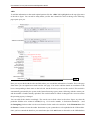
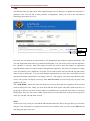
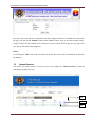
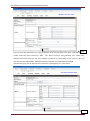
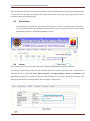
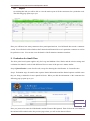
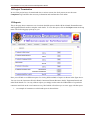
This is the page where you add the human resource details for a particular contractor. As you click on the
“Human Resource” link you will be directed to the following page:
DELETE
SAVE
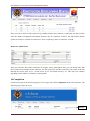
It is similar to the equipment page. On the top of the page the Human Resource Criteria that has been set
before will be displayed. Below the criteria, the Human Resource details provided by that contractor will be
displayed according to the Tier and the last part is where you insert the list of Human Resource. On the insert
part you need to first enter the ID card number as a proof, then select the HR Name, Tier and the Qualification
set earlier will be displayed accordingly on the qualification field. On the Human Resource name field, all the
Human Resources that have been set will be available. You just need to select accordingly and his/her
qualification will also be displayed respectively.
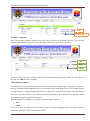
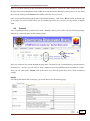
Note: It is necessary that you select the HR Name or either click once on the HR Name dropdown box for
the qualification to appear for that particular person that has been set earlier.
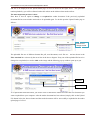
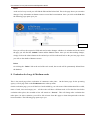
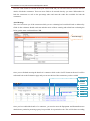
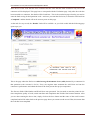
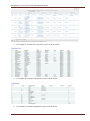
Before saving you can check ID Card Number by clicking “Check” button. When you click, popup message
(i.e., CDB No. and WorkID) will show only if ID Card Number is being used under some other contractor,
that’s under work (Sample below).
21