1
Operation Examples (Area measurement by binary conversion)
Continued from the preceding page
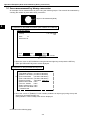
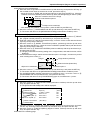
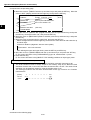
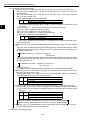
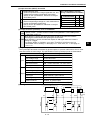
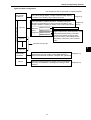
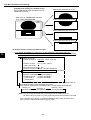
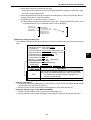
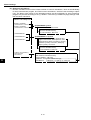
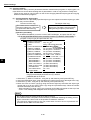
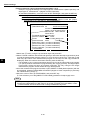
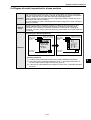
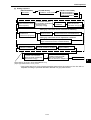
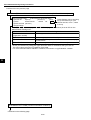
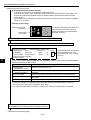
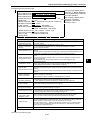
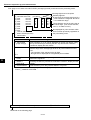
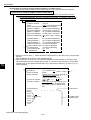
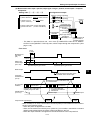
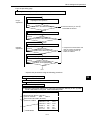
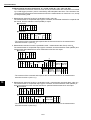
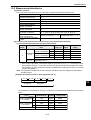
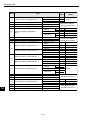
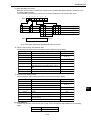
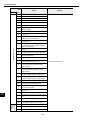
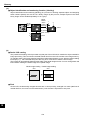
(3) Operation on the [OBJECT TYPE COND] menu
[OBJECT TYPE COND]
1OBJECT TYPE NO.
2EDIT
3TITLE REGISTRATION
4MEAS.0, CAMERA1
5POS. ADJ.CAMERA1
6MEAS.0, CAMERA2
7POS. ADJ.CAMERA2
8SELECT CAMERA IMG
1
0MEASUREMENT 1
qMEASUREMENT 2
wMEASUREMENT 3
eFINAL CALC RESULT
rFINAL OUTPUT COND
tSYSTEM-IN/OUT
yHALT MEAS ON NG
uUPPER MENU
F C1 H
00(0~15)
COPY(←OBJ TYPE00) INITIALIZE
(TO NEXT SUB-MENU)
NO (TO NEXT SUB-MENU)
NO ADJ. [REG. 0-1PNTSXY]
NO (TO NEXT SUB-MENU)
NO ADJ. [REG. 0-1PNTSXY]
NO CAM1 CAM1 CAM1&2
3
NO (TO NEXT SUB-MENU)
NO (TO NEXT SUB-MENU)
NO (TO NEXT SUB-MENU)
(TO NEXT SUB-MENU)
(TO NEXT SUB-MENU)
(TO NEXT SUB-MENU)
NO YES
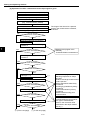
1. Move the cursor to 0MEASUREMENT 1 and press the SET key.
- The [TYPE00-MEAS1] (type: 00, measurement: 1) menu will be displayed.
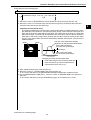
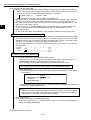
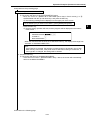
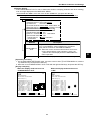
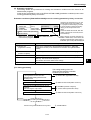
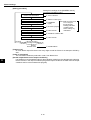
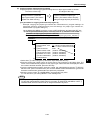
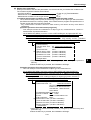
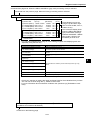
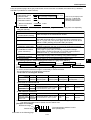
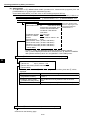
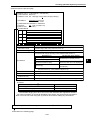
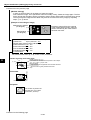
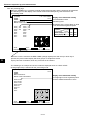
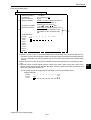
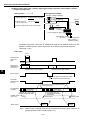
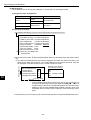
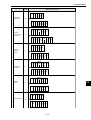
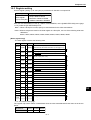
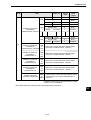
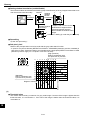
(4) Operation on the [TYPE00-MEAS1] menu
[TYPE00-MEAS1]
1MEAS SELECTION NO CHECK-DEG-OF-MATCH
1
DST&AGL MES. (GRAY&EDGE GRAV)
INSPECT-LEAD MEASR-BIN-AREA
CNT-BIN-OBJ LABEL-BIN-OBJ
POINT MEAS
3
3SELECT CAMERA
4COPY
5INITIALIZATION
6MEAS.PROG. COND
7EVALUATION COND
8NUMERIC CALC COND
9OUTPUT CONDITIONS
0UPPER MENU
2
CAM1 CAM2
EXEC←TYPE00−MEAS1−NO
EXEC
(TO NEXT SUB-MENU)
(TO NEXT SUB-MENU)
(TO NEXT SUB-MENU)
(TO NEXT SUB-MENU)
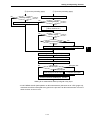
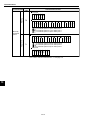
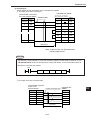
1. Move the cursor to 1MEAS SELECTION (select measurement) and press the SET key.
2. Move the cursor to MEASR-BIN-AREA (area measurement by binary conversion) and press
the SET key.
3. Move the cursor to 6MEAS.PROG. COND (conditions of measurement program) and press
the SET key.
- The [MEASURING COND] (measurement condition) menu will be displayed.
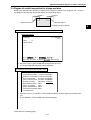
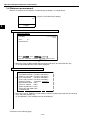
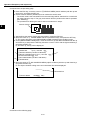
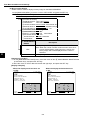
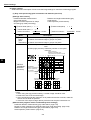
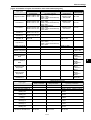
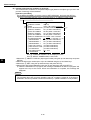
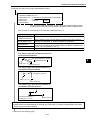
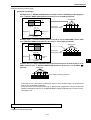
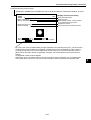
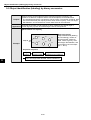
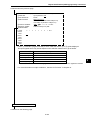
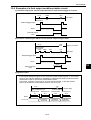
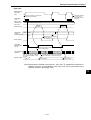
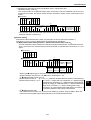
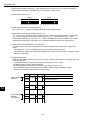
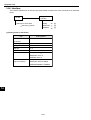
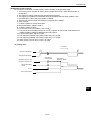
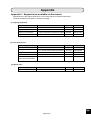
(5) Operation on the [MEASURING COND] menu
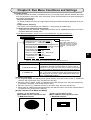
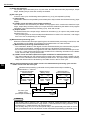
1. Move the cursor to 1REGST NO. (register number) and press the SET key.
2. Move the cursor to YES, and press the SET key.
-Item 2will be highlighted.
1
3
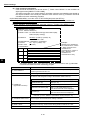
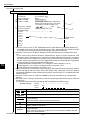
[MEASURING COND] (TYPE00-MEAS.1-MEAS-BIN-AREA)
00(0~15) REG.NO YES
1REGST NO.
2BINARY AREA COND (TO NEXT SUB-MENU)
3UPPER MENU
2
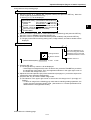
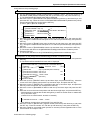
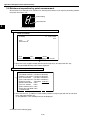
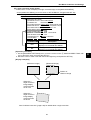
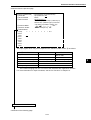
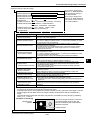
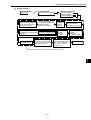
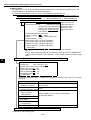
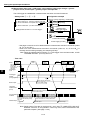
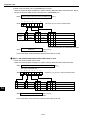
3. Move the cursor to 2BINARY AREA COND (condition for measurement window) with the
up and down keys, and press the SET key.
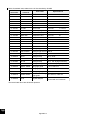
- The [BIN.AREA SET] (binary zone setting) menu and a measurement window will be
displayed.
Continued on the following page
3-3