1
Your tablet
• Customize: Start up, then “Personalize” on page 6.
At a glance
• Create: Check and send your “Email” on page 18, and
even manage documents and calendar events for
“Work” on page 23.
When you’re up and running, be sure to explore what
your tablet can do:
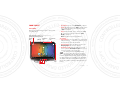
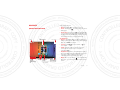
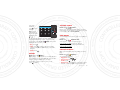
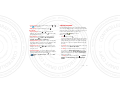
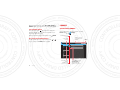
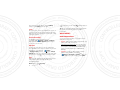
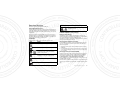
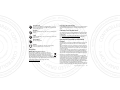
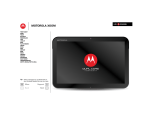
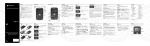
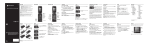
Power/Sleep Key (on back) Hold=power, Press=sleep
Camera Lens and Flash (on back)
Volume
Keys
SIM Card
Headphone
Jack
• Enjoy: Download apps, games, and more in “Load
up” on page 8, and explore media with “Play &
record” on page 13.
Note: Your tablet may look a little different.
Front Camera
Lens
Tips & tricks
• Power/Sleep: To turn your tablet on or off, press and
hold Power/Sleep
on the back. To make the screen
sleep or wake up, press but don’t hold.
• Charging Light: When the tablet is turned off, the
Charging Light tells you if it is charging.
• Notification Light: When the tablet is on but the
screen is dark, the Notification Light tells you if you
receive a message or other notification.
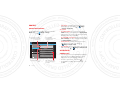
People
Browser
Google
Settings
4:00
Micro USB
Micro HDMI
Charger
Charging
Light
Notification
Light
This product meets the applicable limit for
exposure to radio waves (known as SAR) of
1.6 W/kg (FCC & IC). The limits and guidelines
include a substantial safety margin designed to assure
the safety of all persons, regardless of age and health.
The highest SAR values measured for this device are
listed in the regulatory information packaged with your
product.
Your tablet
1