1
Examples
4.2
Multiple Instances Example
Instances are useful when you are dealing with data that is unpredictable in terms of its
creation and deletion—e.g., aircraft/airplane flight tracks and shipment tracking.
Flights and shipments can come and go. The application has no way of knowing when
or how many flights/shipments show up. Connext provides rich semantics that can be
used to track, monitor, and check the state (new, deleted, no writers, etc.) of individual
instances. Some of the possible notifications are displayed in the Output tab.
Publishers and subscribers are associated with a topic. If you create a new topic every
time a new flight is detected, you would need to create a matching subscriber and publisher pair. This is obviously not scalable, since you can have many different aircraft
flight plans.
Instances give you the ability to scale a topic. Unique instances of a topic are defined by
unique key values. A subscriber of a topic will get all the data sent on all the instances of
this topic. Take the example of flight track data: the key could be the flight ID, pilot
name or mission code. Regardless of how many new flights there are, you would only
need one subscriber to get the data, because the topic is the same.
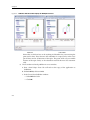
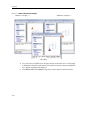
In this example, the topic is the shape of the object (Square, Circle or Triangle) and the
key is its color. So different colors of an object give you different instances of the topic.
For example, a red circle is a different instance from a green circle, yet they are all
instances of the Circle topic.
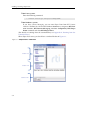
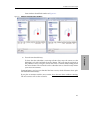
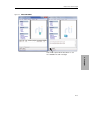
At this point, you should have two copies of Shapes Demo running, which will be
referred to as Publisher1 and Subscriber1. In this example, you will be asked to start
additional copies of Shapes Demo.
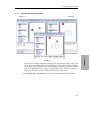
Tip: If you make a mistake during the following steps and need to delete a single publisher or subscriber, select the item in the Legend tab and press the Delete key on your
keyboard.
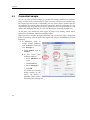
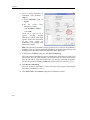
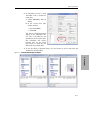
1. This exercise picks up where the previous one left off. So you should have two
demo windows running: one is publishing red circles and the other is subscribing to circles.
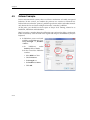
2. In Subscriber1, choose Delete All from the Controls Menu.
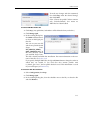
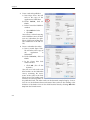
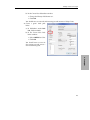
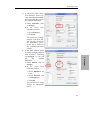
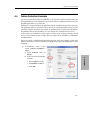
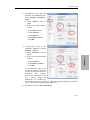
3. Create a circle subscriber with History = 1:
a. In Subscriber1, under Subscribe, click on Circle.
4-4