1
On Screen Annotation, cont’d
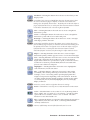
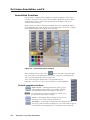
Undo — Selecting this allows the user to undo the last 7 completed
annotations or undo a Clear action.
N A completed annotation is defined by lifting the finger or stylus from the touch
screen, pressing the keyboard Enter key, or releasing the primary mouse button.
Redo — If selected while using the Undo function, it recreates the last
undone annotation.
Clear — Selecting this clears the screen of all unsaved annotations, and
can be undone with the Undo function.
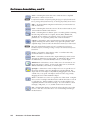
Tools — Selecting the Tools button opens a secondary palette containing
the following advanced tools: Capture, Freeze, Mute, Whiteboard,
Spotlight, Zoom, and Pan. On selection of any tool, the secondary
palette closes. To reopen the palette, click on the Tools button.
Capture — Select this to take a snapshot image of the current program
output, including annotations (but not any open OSD palettes). This
captured image can be saved to the Annotator's memory for later recall.
N Using SIS commands the Capture tool can be customized to send out an
unsolicited response, indicating an image is ready to be streamed directly to an
external PC.
4-6
Freeze — Select this to freeze the live video. To unfreeze the video,
reselect this button or switch inputs.
Mute — Select this to mute the video input and display a black screen.
Annotations and menus are still visible. To unmute the video, reselect
the Mute button, or select the Whiteboard tool, or switch inputs.
Whiteboard — Select this to create a white canvas for annotations. No
input video image is visible. To remove the white canvas, reselect the
Whiteboard button, select mute, or switch inputs.
Spotlight — Select this to create an ellipse to focus on a specific area of
the screen, while the outer area's brightness is greatly reduced. The
shape and size of the ellipse is adjustable by dragging the cursor while
outside of it, to any point. The ellipse can be moved to any point by
dragging the cursor while within the ellipse.
Zoom — Select this to zoom in to a specific area of the screen. Using the
cursor, create a rectangle at the desired area and the Annotator zooms in
to view that area. If the boundaries of the area are beyond the zoom
capabilities, then the view will not change. To zoom out draw a small
rectangle (<100 pixels, ~1"x 1") and the normal view is restored.
Pan — Selecting this while in zoom mode, allows the user to move the
focus to a new area. Place the cursor on a zoomed image and drag to
the desired area.
Annotator • On Screen Annotation