1
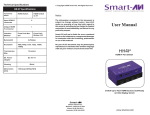
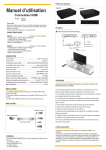
INTRODUCTION INSTALLATION DIAGRAM With SmartAVI’s HDNET-4P it is now possible to connect up to four HDMI devices to one display screen for easy switching between sources. Transmit high definition sources such as BluRay players, gaming consoles, computers or cable receivers effortlessly while viewing on a single HDTV monitor. The HDNet-4P offers an automatic switching mode, and when configured as an automatic switcher, it has the ability to switch to a selectable secondary input upon powering off of the primary input. HDNet4P will automatically switch to the next device when the higher input is powered off. This allows the user to control multiple devices with the HDNet-4P. FEATURES RS232 switching control IR switching control Front panel switching control EDID learning of any monitor Maintains 480p, 720p, 1080i and 1080p video formats Supports HDMI 1.3 digital audio format, LPCM/ Dolby-AC3/ DTS7.1/DSD ATC & HDCP compliant Connect four HDMI components to one HDTV monitor Supports DVI-D WHAT’S IN THE BOX PART NO. QTY DESCRIPTION HDNET-4PS 1 HDMI 4x1 Automatic Switch Power Supply 1 PS5VDC-2A User Manual 1 CONNECTING THE HDNET-4P AUTOMATIC MODE 1. Ensure that power is disconnected from HDNET4Pro. 2. Connect up to four HDMI cables from the source devices to the respective HDMI IN ports on the HDNET-4P. 3. Optionally connect RS-232 for control functions. 4. Connect the display monitor to the HDMI OUT on the HDNET-4P. 5. Power on the HDNET-4P. 1. Locate the Phoenix Connector at the rear of the unit. 2. Plug in the Phoenix Connector jumper. 3. When the device is in automatic mode and at least one input is plugged in, the monitor LED will blink. *Note: The pushbuttons will be disabled in Automatic Mode. EDID programming is also disabled in this mode. LEARNING EDID 1. Unplug all of the inputs to the HDNet4P, make sure the HDNet4P is in manual mode (Not automatic mode, so remove the phoenix connector jumper.) 2. Plug the display monitor that you will be using into the HDNet4P 3. Turn on the HDNet4P 4. Turn on the display monitor 5. After a moment simply press and hold both buttons on the front control panel for about a second and then let go. 6. Notice the lights on the front control panel will begin flashing for about 10 seconds (if this isn’t the case then try again.)