1
www.bestcircuit.ca
1.0
Evaluation Kit Contents
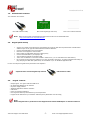
The evaluation kit contains:
One USB extension cable,
Note:
2.0
One touch keypad (top side view)
One 1.6mm Leaxan dielectric
When the text refers to download a file that means the file can be downloaded from
http://www.bestcircuit.ca/Download.html
Keypad quick startup
•
•
•
•
•
•
•
•
Verify if the 1.6mm Lexan dielectric is well attached on top of the PCB. PCB is provided with a double sided
adhesive tape. No air gaps are allowed between PCB and dielectric.
Connect the USB cable to the touch keypad
Place the touch keypad on a flat surface
Hold in place the USB cable with heavy object (book)
Connect the USB cable to your laptop or PC
The red LED will indicate the keypad is ON
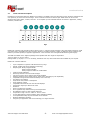
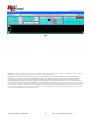
Touch over the dielectric in the area marked in white as key 1, 2 etc and observe the LEDs activity.
Do not touch the keys from the bottom as you may “eliminate” those keys. To restore keypad functionality unplug and plug the USB cable (hard Reset). Or click Reset if you use Windows Application WA.
For how to setup the keypad’s touch parameters see Chapter 6.
Important note: Use the keypad only with the
3.0
-
USB extension cable.
Keypad features
Output signal: four green LEDs and USB serial
On board USB adaptor for PC interface
No power supply needed
Windows Application software interface
USB driver
Power-up valid keys detection
Error signal for bad keys detected during normal operation
Keypad can be attached to your dielectric material (touch parameters must be setup)
Note:
When integrated into a product the touch keypad works without USB adaptor or interface software.
Technical Support 647-388-2976
-3-
email cust.support@bestcircuit.ca