1
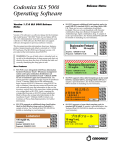
◆ Additional barcode symbology options are now enabled and supported on 500i. These are Code 128 barcodes with GS1-128, Code 39 and Code 32, EAN-13. ◆ A new Codonics screen saver is provided. After 60 minutes of no users being logged in, a Codonics screen saver is enabled when the user is logged out. The scanner will not register scans or clear the screen saver. A user will need to touch 500i’s screen to clear the screen saver. Previously, the screen saver was a black screen. ◆ ◆ ◆ The scanner and cutter firmware (i.e., PIC) version is now reported on 500i’s user interface. The information can be found in the System tab of the System Information screen. When installing software, 500i now automatically loads the latest printer and scanner firmware. A warning is now shown if an unsafe (e.g., not shut down from 500i’s user interface) is detected. The warning provided is Warning Code 86, The SLS has recovered from an unexpected shutdown. Use the power icon on the touchscreen for proper shutdown. Powering down from 500i’s user interface ensures that the SmartDrive is properly backed up and the remainder of the system is properly shutdown. Defects Corrected ◆ Barcode symbology option (EAN-13) displayed in the Administration Tool is now supported on 500i. ◆ Previously, there was a long delay between pressing OK on a successful update dialog and 500i’s user interface responding. Now the dialog promptly clears from 500i’s user interface to indicate that an update package was successfully applied. ◆ ◆ ◆ Previously, there was a long delay between pressing other buttons and 500i’s user interface responding. Now when pressing Yes when the Are the Date and Time Correct? and the OK button on the Add or Delete Feature Key dialog, the SLS user interface responds more immediately. Previously an Error Code 12 Printer is not responding or has an error message would occur if attempting to scan/print another label right after completing a label print. Now 500i will either show a System Busy message or continue the printing process depending on how soon a user scans/prints another label. Previously, Network dialogs allowed users to scan drugs and 500i syringe labels and then display the drug. To be more consistent with other dialogs (e.g., Adjust Label), 500i now dismisses scan events while the Network dialogs are open. ◆ An invalid syringe barcode is now generated if 500i’s date is before Jan 1, 2010. Now, 500i will automatically require a user to set the date/time to a date after April 1, 2012, and will not allow a user to continue until a valid date is entered. ◆ Previously if the Ethernet had not been Enabled when starting up 500i, and the cord is, or became, disconnected, plugging in the cord would not automatically provide a connection. Now, if the Ethernet is Enabled and the cord becomes disconnected from 500i during use, and then is reinserted during use, then the Ethernet will automatically work. ◆ The active tracking database is now reduced to approximately one year in size. When the tracking database is pruned, it is then archived. This improves the performance of 500i as the database becomes larger. ◆ Previously, 500i’s scanner was set to decode any length of Interleaved 2 of 5 (ITF) which could lead to issues with the scanner mistakenly interpreting non-barcodes as very short ITF. 500i’s scanner is now set to decode ITF from six to 30 digits long. ◆ The printer does not reset during shutdown causing labels to jam. Previously, if a user logged into 500i and then shutdown from the user interface without printing a label, the printer would reset and cause the media to feed and jam. ◆ Previously, a Low Ink warning could cause an Out Of Service when Test Prints were enabled. Now, you can dismiss the Low Ink warning, and then the Login dialog appears. Known Common Issues This section details common issues with 1.4.0 500i’s software that are likely to be experienced by most users. ◆ Users need to create unique IDs when creating User Badges. If user A creates a User Badge on system A with an ID 12345 and user B creates a User Badge on system B with the same ID 12345 (and same password), when user A scans their badge on system B, they will be logged into system B as user B and vice versa for user B on system A. ◆ Administer Mode does not stop auto-logout. If the autologout screen appears after a Administer Mode screen, press the OK button if you want to remain logged into 500i. Known Uncommon Issues This section details uncommon issues with 1.4.0 500i’s software that are unlikely to be experienced by most users. ◆ 500i’s time zone is set to GMT which could affect when Wi-Fi certificates become valid. If a Wi-Fi certificate is created in a different time zone, the certificate may not be valid immediately due to the difference in time. For example, EST and GMT have a 5 hour difference. If a certificate was made in EST, it would take 5 hours to become valid on 500i. 2