1
Blackboard Academic Suite Release 8.0 Service Pack 6 (8.0.475.0)
8.
Release Notes
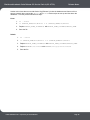
In the URL field, type the following:
file:////\\[local_server_name]\[sharename]
For example:
file:////\\bb_app_server_01\bb_content\vi\*
7.
Restart IIS.
Token Warnings
Users may see token warnings that begin with antarg. These warnings can be safely ignored.
Infinite loop in tokens. Currently known tokens :
[antargs.default.users.administrator.password]
Problem token : @antargs.default.users.administrator.password@ called from
@antargs.default.users.administrator.password@
Infinite loop in tokens. Currently known tokens :
[antargs.default.users.integration.password]
Problem token : @antargs.default.users.integration.password@ called from
@antargs.default.users.integration.password@
Infinite loop in tokens. Currently known tokens :
[antargs.default.users.rootadmin.password]
Problem token : @antargs.default.users.rootadmin.password@ called from
@antargs.default.users.rootadmin.password@
Infinite loop in tokens. Currently known tokens : [bbconfig.cs.db.cmsuser.pass
Language Pack Changes
To ensure consistency across releases, the Blackboard Academic Suite Updater will compare the existing
en_US language pack against the version that is being installed. The differences are noted and output in
a file named bundle_diff.txt. This file is added to the
blackboard/backups/<updater_time_stamp> directory. Use this file to review the text differences
between releases and make updates to any custom Language Packs.
Update Failure due to Strict Password Requirements (SQL Server)
On an update with SQL Server, the installation may fail due to the strict parameters for password
requirements. The user will receive the following message:
Password validation failed. The password does not meet Windows policy requirements because it is too
short.
To override or reset the password requirements, follow these steps:
©
1.
Create a text file named mycustom.properties and add the following line to it, where
pAssw0rd is the actual password:
bbconfig.database.jreport.password=pAssw0rd
2.
Run the Academic Suite installer as follows, where PLATFORM-VERSION is the appropriate
version:
java -jar bb-as-PLATFORM-VERSION.jar -config mycustom.properties
2009 Blackboard Inc. Proprietary and Confidential.
Page 24