1
Appendix B
PC3K Bootloader
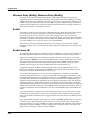
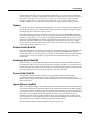
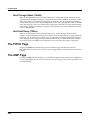
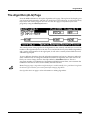
The Bootloader is the program that runs when the PC3K is first turned on. Its job is to check that hardware is functional, initialize the digital systems, and load the main synthesizer program. Under normal circumstances you might not even notice that the Bootloader is there at all, since the PC3K will start up on its own without any problem. However, if you want to update your unit, or perform maintenance on it, you may need to interact with the Bootloader program itself. This appendix describes what the Bootloader can do and how you can use its functions.
The first thing to understand is that PC3K executable programs and all object data reside on a file system contained inside the instrument. This file system is based on flash memory technology and will persist across power cycles. When the PC3K starts up, the Bootloader copies the synthesizer program into memory and executes it ‐ just like a PC “boots up” when you turn it on. The PC3K also stores its factory‐defined objects, and all of your own customized user objects on the file system. The Bootloader program itself is not found on the file system. Instead, it resides in a ROM chip that cannot be erased, and therefore is permanently installed in your PC3K.
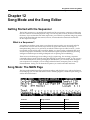
Using the Bootloader Menu
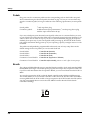
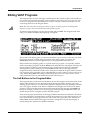
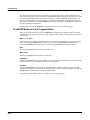
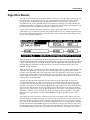
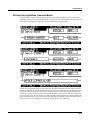
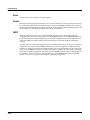
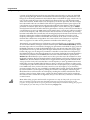
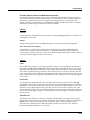
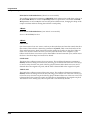
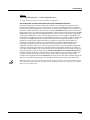
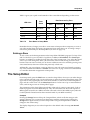
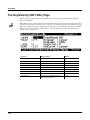
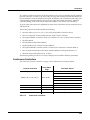
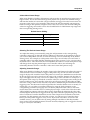
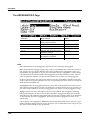
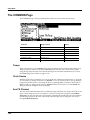
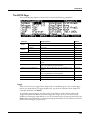
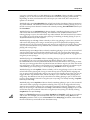
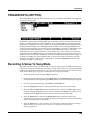
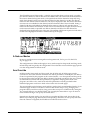
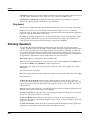
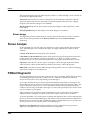
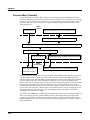
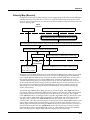
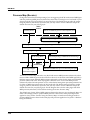
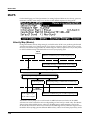
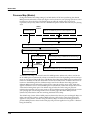
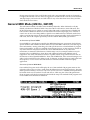
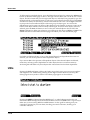
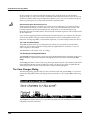
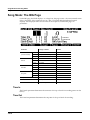
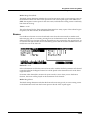
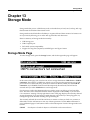
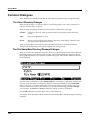
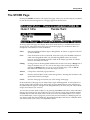
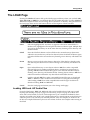
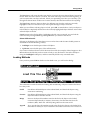
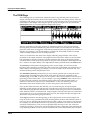
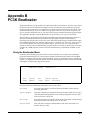
Normally the Bootloader program will do its tasks and hand over control to the synthesizer program automatically. If you want to interact with the Bootloader itself, hold down the Exit button (to the right of the display) while turning the power on (while the message “Initializing Scanner” is displayed on the front panel). Instead of completing the boot process, the Bootloader will display its main menu page on the screen:
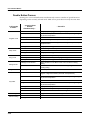
PC3K Boot Loader
Run
PC3K
System
Update
Run
Diags
Version 1.0
System
Reset
System
Utilities
Use the soft buttons underneath the display to choose an action.
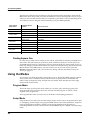
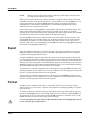
Run PC3K Press this soft button to run the PC3K from the Boot Loader without restarting the PC3K.
System Update
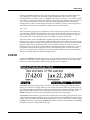
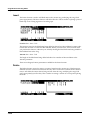
Press this soft button to update the entire system (OS, objects, etc.) from a .KUF file (Kurzweil update file.) You will be prompted to choose a USB device and locate a .KUF file.
Run Diags
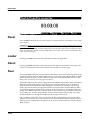
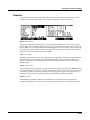
Press this soft button to enter the PC3K diagnostics utility, which can help determine if there’s a hardware error on your unit.
System Reset
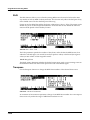
This will clear out all user‐defined objects and return the PC3K to its default “Factory” state.
B--1