1
Modules & Options
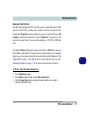
Reducing Video File Size
Note that capturing high resolution video files requires a substantial amount of disk
space for each file. After recording video, check the video file size (right-click the
file and select Properties) and the remaining free space on your hard disk (go to My
Computer, right-click the hard disk, and select Properties). If necessary you can
remove the recorded video file to a removable medium e.g. CD, DVD or USB Flash
drive.
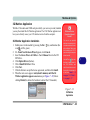
Note that the Windows Vista system requires a minimum of 15GB of free space on
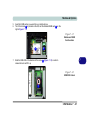
the C: drive system partition. In order to prevent system problems it is recommended that you save the captured video file to a location other than the C: drive (see “Set
Capture File” on page 7 - 16), limit the file size of the captured video (see “PreAllocating File Space” on page 7 - 16) or reduce video resolution (see below).
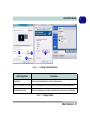
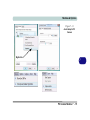
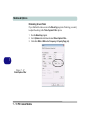
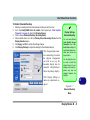
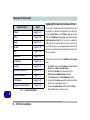
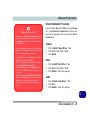
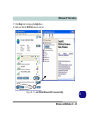
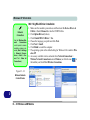
To Reduce Video Resolution Output Size:
1.
2.
3.
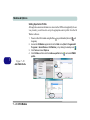
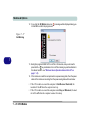
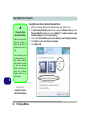
Run the BisonCap program.
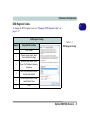
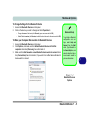
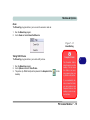
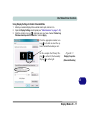
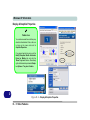
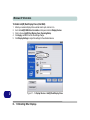
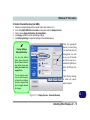
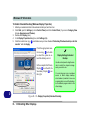
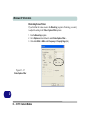
Go to Options and scroll down to select Video Capture Pin....
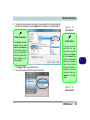
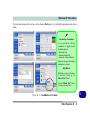
Click the Output Size drop box and select a lower resolution size in order to
reduce the captured file size.
PC Camera Module 7 - 17
7