1
C
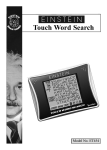
ongratulations on your purchase of Excalibur Deluxe Touch Word
Search. Now, challenging Word games can travel with you anywhere.
Deluxe Touch Word Search offers varying levels of challenging computer
opponents, has simple, intuitive controls and a vocabulary of over 47,000words!
The Excalibur Deluxe Touch Word Search is easy to use, but before starting,
please read this manual thoroughly. Keep this manual for reference.
Items Included
1 Deluxe Touch Word Search Unit
1 Carry Case
1 Stylus
1 User’s Manual
Install the Batteries
Key Functions
Find the battery-compartment panel on
the back of Touch Word Search and slide
it out. Install two fresh, alkaline AAA
batteries, making sure to follow the diagram in each battery slot so that the polarity (+ or -) of the batteries is correct.
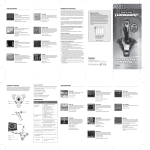
Please refer to the Key Layout image on
the right.
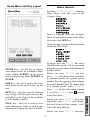
LIGHT Key - press this key to turn the
screen backlight on or off.
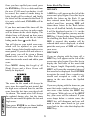
is the On/Off key. Your game state,
scores and time will be saved if you turn
off the unit. If a key has not been pressed
within four minutes, the game will auto-
Replace the battery-compartment panel
by sliding it in.
After you have installed the batteries, the
display will show the copyright screen. If
it does not, press RESET on the back
using a thin pointed object. Press any key
to continue to the Home Menu.
matically turn off. Press
on.
to turn it back
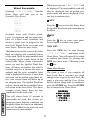
is the LCD Contrast key. Use this key
to set the LCD contrast to 1 of 8 settings.
Press when finished adjusting settings.
Finding the Stylus
is the Sound Key. Use this key to turn
the sound off or on.
The stylus may be found in one of two
places. The first is in the stylus holder at
the middle of the carry case.The second is
at the back side of the unit near the
Excalibur logo. Use your thumbnail to
slide it out.
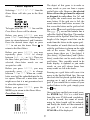
is the Clear Key. Use this key to clear
an unwanted or wrong entry.
NEW Key - press this key to return to the
Home Menu and start a new game.
MENU Key - this keys function changes
depending on the word game being
played.
2