1
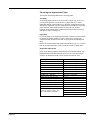
Border Erase
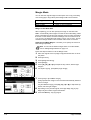
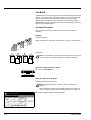
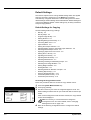
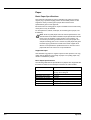
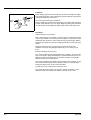
Prevents the appearance of shadows from around the edges of originals.
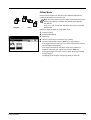
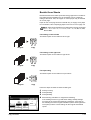
Choose from the following Border Erase modes.
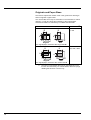
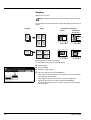
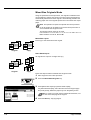
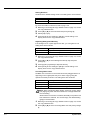
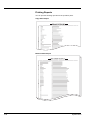
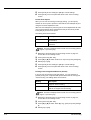
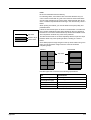
Sheet Border Erase – Use this mode to erase black borders around the
single sheet original.
Original
Copy
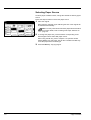
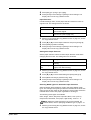
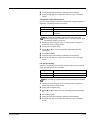
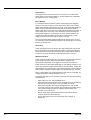
Book Border Erase – Use this mode to erase black borders around the
edges and in the middle of the original such as a thick books. You can
specify the widths individually to erase the borders around the edges
and in the center of the book.
Original
Copy
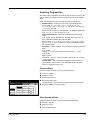
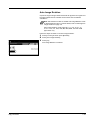
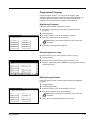
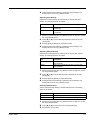
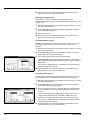
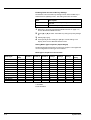
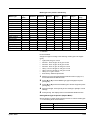
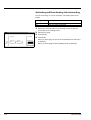
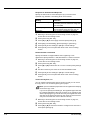
Separate Border Erase – Use this mode to specify border widths
individually on all sides to erase.
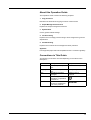
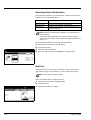
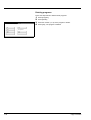
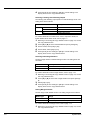
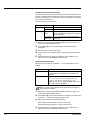
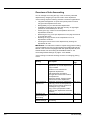
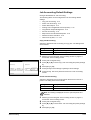
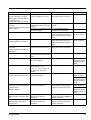
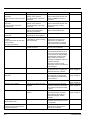
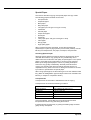
The border widths that can be set for each mode are as follows.
Original
Copy
Model Type
Range
Inch models
Metric models
0 - 2" (1/8" increments)
0 - 50 mm (1 mm increments)
Note You can set the default width for erasing borders. For further
details, refer to Erasing Borders on page 3-9.
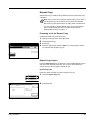
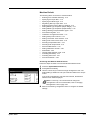
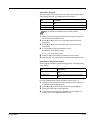
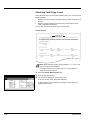
Sheet Border Erase
Follow the steps as below to erase the black borders from around the
edges of the single sheet original.
Ready to copy.
Shortcut
Border Erase
Ba
1
2
3
4
5
"
6
Off
Bord Erase
Sheet
¼
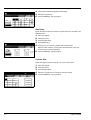
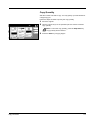
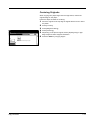
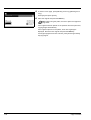
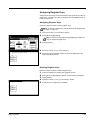
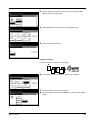
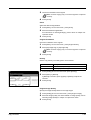
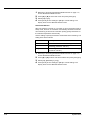
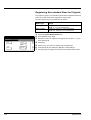
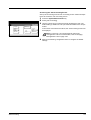
Press [Function].
Press [Border Erase].
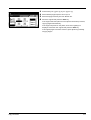
Press [Bord Erase Sheet].
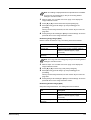
Press [+] or [–] to set the border erase width.
With metric models, you can enter the border width directly using the
numeric keys by pressing [#-Keys].
(0~2)
Border
Place the original.
Press the Start key. Copying begins.
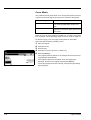
Individual
BordrErase
Book
Erase
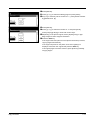
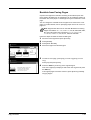
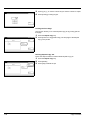
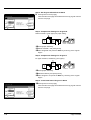
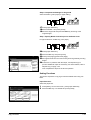
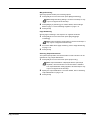
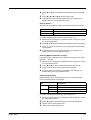
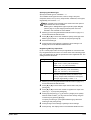
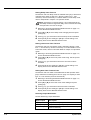
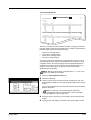
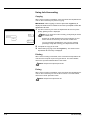
Book Border Erase
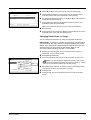
Follow the steps as below to erase the black borders around the edges
of original such as a book.
1
2
1-14
Place the original.
Press [Function].
Copy Functions