1
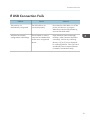
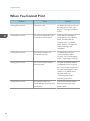
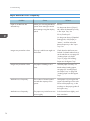
Other Printing Problems
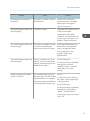
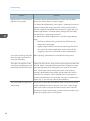
Problem
Cause
Solution
Printed images contain blots or
are patchy.
The paper is creased, curled, or
has blemishes.
Smooth out the wrinkles or
replace the paper. For details
about paper, see page 32
"Paper Precautions".
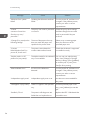
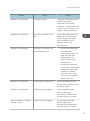
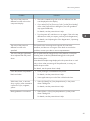
The printed image is faded over
the entire page.
The paper is damp.
Use paper that has been stored
in the recommended
temperature and humidity
conditions. For details about the
proper way to store paper, see
page 32 "Paper Precautions".
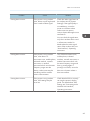
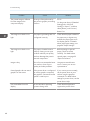
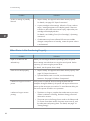
The printed image is faded over
the entire page.
The paper is unsuitable. Printing
on coarse or treated paper
might result in faint print image.
Use recommended paper. For
details about recommended
paper, see page 28 "Paper
Size Specifications" and
page 30 "Paper Type
Specifications".
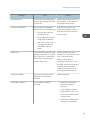
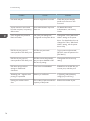
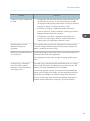
The printed image is faded over
the entire page.
If [On] is selected in the "Toner
Saving:" list in the printer driver
settings, the entire page will be
faded when printed.
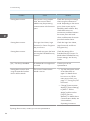
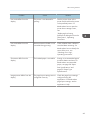
PCL 6/PostScript 3:
Images smudge when rubbed.
(Toner is not fixed.)
The specified paper type and
the paper that is actually loaded
might be different. For example,
thick paper might be loaded but
not specified as the paper type.
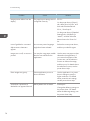
PCL 5c:
On the printer driver's [Detailed
Settings] tab, click [Print
Quality] in "Menu:", and then
select [Off] in the "Toner
Saving".
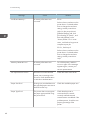
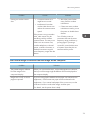
On the printer driver's [Paper]
tab, select a proper paper type
in the [Type:] box.
PCL 6/PostScript 3:
On the printer driver's [Detailed
Settings] tab, click [Paper] in
"Menu:", and then select a
proper paper type in the "Paper
Type:" list.
67