1
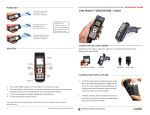
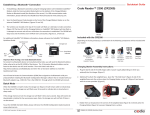
Installing a Battery Handle
1.
To attach a Battery Handle, insert the tab on the back
of the Battery Handle into the reader’s recessed slot.
2.
Press the reader down, towards the handle to snap
into place. Optionally, the reader can be further
secured to the handle with two threaded screws on
the underside of the reader and handle (screws are
included with Battery Handles).
3.
To detach a Battery Handle, slide the locking mechanism on the reader up and pull the battery handle up
and away from the slot on the reader.
Powering On a CR3500
3.
Scan the newly created QuickConnect code, and then
scan the Save Settings code (M188_02).
4.
Next, a Serial Application must be opened to transmit data from the CR3500 to the PC.
Visit www.codecorp.com/downloads.php and download/install CodeXML® Router,
CortexTools™ or open a HyperTerminal. Once installed, select the COM Port of your
reader (see step 2) to complete the wireless setup.
CR3500 Default Settings
The CR3500, out of the box, will read the following bar codes:
Codabar
Codablock F
Code 11
Code 39
Code 39 Short Margin
Code 39 Trioptic
Code 93
Code 128
Code 128 Short Margin
Data Matrix
To power on a CR3500, press and hold either
trigger button for approximately one second.
Int 2 of 5
PDF417
Telepen
UPC
UPC Short Margin
UPC-E Expansion
To configure a CR3500 to read bar codes not listed, please download the CR3500 User Manual
from www.codecorp.com and scan the appropriate ‘Enable’ bar code reading symbology
CR3500 Wireless Setup
configuration code.
To establish a Bluetooth connection via Code’s CodeXML® M3 Modem, please refer to the
CodeXML® M3 Modem QuickStart Guide, available at www.codecorp.com.
Suffix Enter Configuration
Establishing a Bluetooth Connection with a non-Code Bluetooth Adapter:
USB and Carriage Return/Line Feed for RS232 scan the configuration code, followed by the
The default setting on the CR3500 has Suffix Enter disabled. To enable the Suffix Enter for
Save Settings (M188_02) bar code above:
1.
Visit http://www.codecorp.com/bdaddr.php and follow the instructions to create and
print a QuickConnect Code that is specific to your adapter.
2.
Plug the adapter into the USB port on your computer, and follow the installation
instructions included with your adapter. Make note of the COM Port assigned to the adapter (e.g. COM 11).
Note: Detailed instructions, including screen shots, on connecting a CR3500 to
non-Code Bluetooth devices can be found in the CR3500 User Manual available at
www.codecorp.com.
Enable Suffix Enter - USB
Enable Carriage Return/Line Feed - RS232
For more configuration options, including disabling the Suffix Enter configuration, download the
CR3500 User Manual from www.codecorp.com.
2
3