1
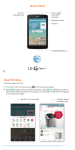
Mobile Hotspot
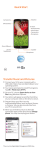
To view mobile
hotspot settings,
tap the widget.
Turn the
hotspot on
or off.
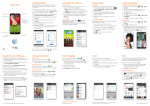
Block Mobile Hotspot Access
Transfer Files with the Mobile Hotspot
To prevent a device from reconnecting to the mobile hotspot, add it to the hotspot’s
blocked list.
On the home screen, tap the Hotspot widget > Manage users.
Select the device you want to block (scroll down to see more connected devices).
Note the MAC address (you will need to enter this on a separate screen).
Turn Hotspot Off.
Tap the Hotspot widget > Manage users > Block devices.
Check Block users.
Select ADD NEW to enter MAC address you wish to block.
Share pictures, music, videos, and other types of files.
Before you begin, make sure you are connected to ZTE Spro 2’s mobile hotspot.
On your ZTE Spro 2, tap SETTINGS > Network > File Share.
Tap
.
Connect the device you would like to share files with to the ZTE Spro 2’s
mobile hotspot.
Open the connected device’s browser, enter http://attwifimanager then enter the
password shown on the ZTE Spro 2’s File Share screen.
Mobile Hotspot Settings
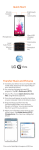
To upload a file, tap
here, select the file you
want, then tap upload.
To view a file,
tap it.
To download a
file, tap here.
To change your
Network Name
or Password,
tap Settings.
NOTE: When mobile hotspot is enabled, you will be disconnected from all Wi-Fi networks and can
only access the Internet with mobile data service.
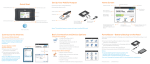
Insert a microSD™ Card or microSIM Card
Work with Tabs
Find More Information
Need More Help?
• On your device: APPS > Device Help
• On the web: att.com/DeviceHowTo
• Projector light troubleshooting: Refer to User Manual at att.com/DeviceHowTo.
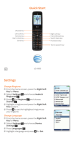
You can customize the ZTE Spro 2 interface by adding or removing tabs.
To rename or delete a tab,
press and hold the name.
Manage Your Account
• On the web: att.com/MyATT
Create a new tab.
To open a tab,
tap the name.
To move an app
to a different
tab, press and
drag the icon to
the name of the
destination tab.
Note: You can also suspend service if your device is stolen.
microSIM
Card Slot
microSD
Card Slot
Turn the projector upside down before you open the microSD or microSIM card slots
(microSD card sold separately).
Give us a Call
• 800.331.0500
• 611 from any AT&T wireless phone
Accessories
• att.com/Wireless Accessories
• Visit your AT&T store
Package Contents: ZTE Spro 2, Lithium polymer battery, microSIM card (pre-installed),
microSIM/microSD pin, Wall adapter and cable, HDMI cable, Carrying case
Note: Use only the included charger and cable with your device.
Push the point of the microSIM/
microSD pin into the hole on the
microSD card slot.
NOTE: Some default tabs can’t be deleted or renamed.
Place the microSD card
in the tray making sure it
is properly oriented.
NOTE: The microSIM card is already installed. If you need to swap microSIM cards, the process is
similar to microSD card installation.
Product meets FCC Radio Frequency Exposure Guidelines – FCC ID: SRQ-MF97B. This device complies with Part 15 of the FCC Rules.
Operation is subject to the following two conditions: (1) this device may not cause harmful interference, and (2) this device must accept
any interference received, including interference that may cause undesired operation. Google and Android are trademarks of Google, Inc.
microSD logo is a trademark of SD-3C, LLC. ZTE, Spro, and the ZTE logos are trademarks of the ZTE Corporation.
© 2015 AT&T Intellectual Property. All rights reserved. AT&T, the AT&T logo and all other AT&T marks contained herein are trademarks of
AT&T Intellectual Property and/or AT&T. All other marks contained herein are the property of their respective owners.
Printed in China P/N 079584507572