1
Page 18
Configuring the TM-4100GE Camera
3.4.12 White Balance Control (Color Versions Only)
To determine white balance, use the following steps:
1.
Select scan mode A and no binning in the GigE Camera Software tabbed dialog. shown in
Figure 11 on page 11.
2.
Start the live video by clicking Start in the Acquisition tab of the Camera Interface Application dialog box.
3.
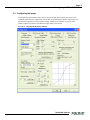
Select “Color Adjustment” under tools in the main menu. Show the camera a piece of white paper
to make sure that the image is not saturated.
4.
Click Analyze to automatically calculate the white balance.
5.
Once white balance has been calculated, click Apply Results to apply white balance. You can also
assign custom gain and offset values to the R, G, and B channels. If you choose to assign custom
values, click Apply Results.
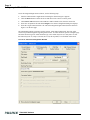
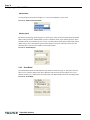
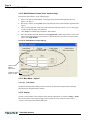
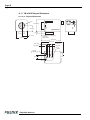
FIGURE 20. White Balance Control Settings.
Custom white
balance.
Gain/Offset
Automatic white
balance control.
3.4.13 Main Menu: “Option”
3.4.13 (a)
Test Pattern
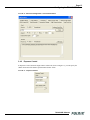
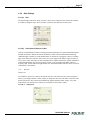
The Grabber Settings tabbed dialog box has a check box to enable the test pattern that is internally
generated by the integrated camera software.
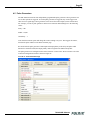
3.4.14 Version
View the version number of the Cam2Net camera interface application by clicking on Help--> About.
The version number of the integrated GigE camera software is seen in a text box control called
“Version” in the GigE Camera tabbed dialog box.
TM-4100GE Software