1
STEMLEAF
STEMLEAF
STEMLAEF
STEMLEAF
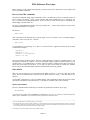
v <opt>
v BYGVAR{=gvar#} [NGROUPS=ng] <opt>
v SPLIT (log-expression) [PARALLEL] <opt>
v1,v2 <opt>
<opt> [SCALE=value] [WIDTH=chars]
[NOLINE] [NOHILOSTEM]
[ASCENDING|DESCENDING]
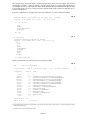
There are four different forms (producing variations of the stem and leaf-plot) of the command each of
them sharing a number of common options. A number of metasymbols7 are used:
v
[]
{}
|
<opt>
Refers to a single variable
Used to indicate an option
Options within options
Select one (alternatives). In the [ASC|DESCENDING] example
select either ASC or DESC, if you use this option ([]= option)
see definition of <opt> elsewhere, usually below
Even though syntax diagrams might look complex, sometimes frightening, make sure to understand that,
the actual command you are typing will often be very simple, e.g. STEMLEAF 1, sometimes with an
option or two.
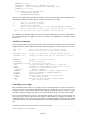
A first list of commands
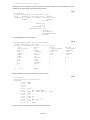
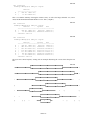
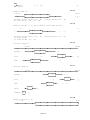
These commands perform common tasks and are useful to learn about exploratory tools. All of them are
straightforward to use and to understand (from the output they produce). You are invited to try them out.
GET
DIR
name
DESCRIBE
DESCRIBE
Gets a work area from the archive library
Shows the work areas in the archive library
vlist
ALL
display variable info. (labels and descriptors)
display variable info for all variables in the WA
STEMLEAF
produces a stem and leaf plot
HISTOGRAM
shows a histogram
HISTOGRAM vlist BAR “classical” histogram
LIST
listing variables, many options (coded etc)
SHOW
conditional lists SHOW FAR shows only outliers
BOXPLOT
displays a box-and-whisker plot
PARALLEL
parallel boxplot
SUMMARY
numerical summaries (5-number summaries etc)
DISPLAY
numerical summaries (MEDIAN MEAN etc)
QSUMMARY
quick summaries
DLINE
density lines (single line histograms)
CODED
coded density lines
PLOT
plot two or more variables (many forms)
PI
plot inspect module
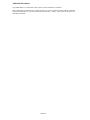
Controlling screen output
Most commands produce output in a way that you can see all information on a single screen. There are
however exceptions: output from commands producing lists usually does not fit on a single screen.
Commands like the LIST or DIR command will, by default, automatically page the output, i.e. after a
screenfull of output, the display stops and you are invited to hit the return key to see the next screenfull8
The are some situations however where the information quickly scrolls off the screen and when the
screen stops you are looking at the bottom of the display. In this situation you might use the <PAUSE> or
<SCROLL-LOCK> keys on your PC to stop scrolling or you might tell EDA to stop after each screenfull
of information: this is done with the SET PAGE ON command (turns paging on; SET PAGE OFF turns it
off).
_______________________________________________________________________________________________________________________
7. Metasymbols are symbols used to explain the syntax and are not used in actual commands
8. You are also offered the choice to stop at that point.
-EDA 1.8 -