1
that the Miscellaneous Information Register created/opened is related directly to the currently
displayed student’s STEMS record.
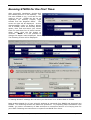
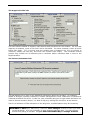
The STEMS Miscellaneous Info Register is a template opened in MS Word 2000 or later. When
a Miscellaneous Info Register is first created for a student, it is blank and ready for data entry.
It is important that the student’s name be typed into the section on the template as it is not
transferred automatically. Type the miscellaneous entry into the template table including all
necessary details. When complete, click the Save button on the toolbar, or select File…Save.
The filename for the Miscellaneous Info Register is automatically specified and MUST NOT be
changed. This register can also be accessed by pressing Ctrl-M on the keyboard.
NOTE: Neither the Accident or Miscellaneous Information Register are required for
Student Transition and will not be transferred to the Regional Office.
Printing Student Records and Reports in STEMS:
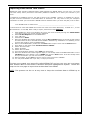
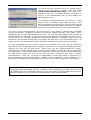
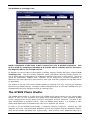
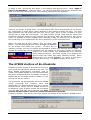
STEMS contains several reporting options. In the
Reports and Queries menu (as shown at right),
you can print a single page report containing all
information for the currently displayed student or
print a single page report containing all
information for EVERY student in STEMS. All
other reports will open automatically in Microsoft
Excel (which must be installed separately on the
PC). With Microsoft Excel, it is possible to sort,
summarise, apply formulae and produce charts
and graphs to assist you with interpretation of
the STEMS data.
NOTE: It is strongly recommended you only
print the reports to a laser printer.
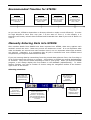
As can be seen from the menu on the previous
page, the separate areas of the STEMS data
forms are separated in the reports, however all
reports
include
base
student
information
including gender, date of birth and designated high school.
It is recommended that you try each of the reports to see what information is included. All
students will be included in each report, unless a Filter has been applied. Filtered databases
restrict the number of records shown, and as a result, all reports only use records that match
the desired filter. More details on filtering in the next section.
If you wish to save reports opened in Excel, it is recommended you change the file type to
save as to XLS format from the original CSV format. It is also recommended you save the file
into a different folder. By default, Excel will open the report file in the Temporary Files folder.
Applying a Filter to the Database:
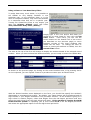
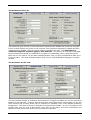
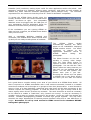
One of the more powerful features in the STEMS program is the ability to apply filters to the
database. Every field in the database can be used when filtering. It is therefore possible to
find all students that match any selected set of criteria. For example, it may be interesting to
know how many students have special talents in Computers, and what the breakdown is
between males and females. This type of query can be performed by applying filters.
School Transition Enterprise Management System for Primary Schools
Page 18