1
CONNECTING THE WIRELESS FOR HDMI UWB
How to Connect the Wireless for HDMI UWB
1.
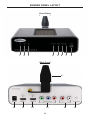
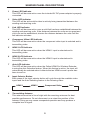
Connect the source devices to the Wireless for HDMI UWB sender inputs.
Available inputs are as follows:
HDMI 1
Connect a HDMI/DVI (with a DVI to HDMI adapter) source
device to the HDMI 1 input port using a user supplied HDMI
cable.
HDMI 2
Connect a second HDMI/DVI (with a DVI to HDMI adapter)
source device to the HDMI 2 input port using a user supplied
HDMI cable.
Component Connect a component source device to the component input
port using the supplied 5 RCA component/audio cable (Red,
Green, and Blue).
2.
Connect the analog audio for the component source, or if you are using a
DVI source, to the analog audio input ports on the Wireless for HDMI UWB
transmitting device using a user supplied 5 RCA component/audio cable
(Red and White).
3.
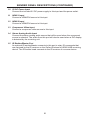
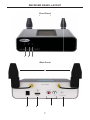
Connect the HDMI display to the Gefen Wireless for HDMI UWB receiving
device HDMI output port using a user supplied HDMI cable. If using a DVI
display use either a HDMI to DVI adapter or cable.
4.
Connect the stereo analog audio output to the stereo analog audio inputs on
either an external audio receiver or the display using a user supplied 2 RCA
stereo analog audio cable.
5.
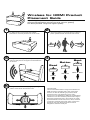
If using the IR repeater feature, connect the optional IR blaster between
the Gefen Wireless for HDMI UWB sender device and the source device’s
IR receiver. Connect the optional IR receiver extension to the Wireless for
HDMI receiver. Place the IR receiver head in a location where it will be in line
of sight with your IR remote control device(s).
6.
Connect the included 5V DC power supplies to the Gefen Wireless for HDMI
UWB sending and receiving devices.
7.
Power on the display first and the source devices second.
NOTE: The Wireless for HDMI UWB will detect and link the sending and
receiving units together and will require no further configuration to begin video
and audio transmission.
9