1
A. Touch Screen and Touch Monitor Installation
1. Introduction: Please identify the Magic Touch model you purchased. Check all the parts in the package against
the following list. Follow the installation instruction only for the specific model that you have purchased.
Improper installation may cause permanent damage not covered by the warranty.
2. Parts List:
Add-On
Touch Monitor Built-In
(KTMT)
(KTSC/KTLC) (KTT)
External touch screen
1
0
0
Hangers & accessories* (set)
1
0
0
Integrated touch monitor
0
1
0
Internal touch screen
0
0
1
Magic pen (stylus)
1
1
1
Cleaning cloth
1
1
1
User’s manual
1
1
1
Installation CD
1
1
1
Warranty card
1
1
1
Controller **
1
1
1
* Notebook models (KTMT-1214, KTMT-1500, and KTMT-154W) do not have hangers.
** Controller is either a box or a board (SB model) with USB cable (USB-XD) or serial cable (ProE-X). USB5-XD
controller is for 5-wire touch screen - black color box with green LED.
3. Magic Touch Add-On Kits (KTMT series) mounting:
3.1. KTMT for notebook computer (KTMT-1214, 1500 and 154W):
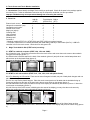
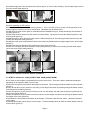
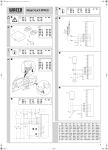
3.1.1. Open the cover. Remove the protective film on the touch screen and mount the touch screen to the notebook
using the Velcro straps (picture 1).
3.1.2. Buckle the horizontal straps to the back of the notebook (picture 2) and pull the two vertical straps down and
adhere them to the horizontal strap (picture 3).
Continue to Section B. Controller & Driver Installation.
1
2
3
3.2. KTMT for 4:3 ratio monitors (KTMT-1315, 1700, 1900, 1921 with plastic frame):
3.2.1. For Mounting on LCD monitor: There are two sets of hangers included; one pair of hard plastic hangers and one
pair of Velcro hangers.
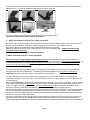
3.2.1.1. You may use the plastic hangers. Place the touch screen panel on a flat table with the backside facing up.
Screw two hangers into the back of the panel using the top screw holes on the hanger (picture 1).
3.2.1.2. Adhere two Velcro strips provided on the top of the display as indicated by the arrows in picture 2. Mount the
touch screen to the display (picture 3).
3.2.1.3. If the top of the touch screen is blocking the view area of the display, you may raise the touch screen by
adding the rectangular foam pad underneath the hangers (picture 4).
4
1
2
3
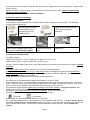
3.2.1.4. Alternatively, you may use the Velcro hangers (picture 5). The soft surface of the Velcro faces up when
fastening them with the screws to the frame. Mount the touch screen to the display and press the Velcro firmly (picture
6).
Page 1