1
Main Setup
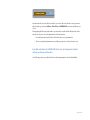
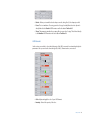
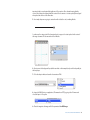
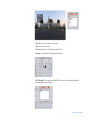
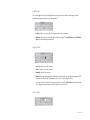
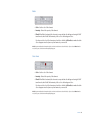
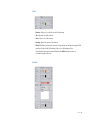
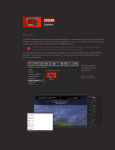
Here you can enable three of the most important parts of this filter, the In Camera Data, the Histogram
HUD and the TC Readout sections.
When you activate these buttons, additional parameters show up in the parameter list.
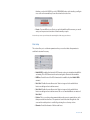
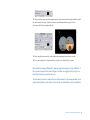
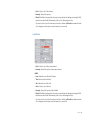
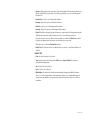
• In Camera Data : If activated, the video clip on your Canvas window changes its size to
accommodate the in-camera data that shows up under the video frame.
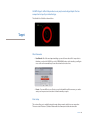
The in-camera data refers to the information that we may never see on-screen, but it is part of the
information provided to you by the viewfinder device, just as what we may be able to see in the
viewfinder of a photographic camera or a video recording device.
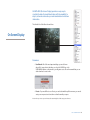
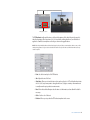
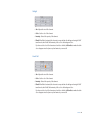
• Time Code [TC] : This button enables the TC Readout section that provides an actual time code
readout of your video footage taken from the beginning of the applied filter.
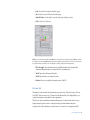
• Histogram : Not many image recorders and cameras may have a histogram that displays the RGB
color values of an image, but with this parameter you can add one of your own that provides a
color feedback of the video or image showing in the viewfinder.
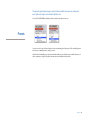
TIP : If you add a color corrector filter before applying the OSD, you will be able to see how the Histogram reflects the color adjustments you are making with the color corrector.
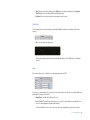
HUD Elements
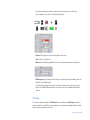
In this section you will be able to pick and activate what elements of your custom HUD you want to
OSD - On Screen Display
21