1
NOTE:
If you want to modify the detailed parameters of your device, please log in
the webGUI configuration page by visiting http://192.168.0.1 or http://m.home.
The default password is admin.
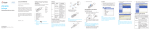
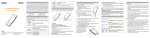
2. Right-click Wireless Network Connection, and then select Properties.
4.Select Obtain an IP address automatically and Obtain DNS server
address automatically, and then click OK to finish the configuration.
AP Station Mode
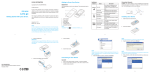
1. Log in the webGUI configuration page.
2.Select Settings > AP Setting.
3. Set the WLAN and WLAN mode, and then click Apply.
NOTE:
You need to set the WLAN On and select Wi-Fi Prior.
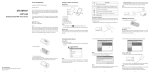
5. After the client connected to the WLAN device successfully, you can
access the Internet.
Using Your Device
3. Select Internet Protocol(TCP/IP), and then click Properties.
Configuring Your PC
Follow the following steps and figures for Windows XP to configure the
Internet Protocol for your Wi-Fi connection.
1. Right-click My Network Places, and then select Properties.
Warning and Notice
4. Connect to the WLAN device.
There are two methods for your reference.
u
Input the WLAN device information in the WLAN Setting area, and
then click Apply.
u
Click More, select this WLAN device which will be listed, and then
click Connect.
9
To the Owner
• Some electronic devices are susceptible to electromagnetic interference
sent by your device if inadequately shielded, such as the electronic
system of vehicles. Please consult the manufacturer of your device
before using if necessary.
• Operating your device may interfere with medical devices like hearing
aids and pacemakers. Please always keep them more than 20
centimeters away from such medical devices when they are turned
on. Turn your device off if necessary. Consult a physician or the
manufacturer of the medical device before using your device.
10
11
• Be aware of the usage limitation when using your device at places such
as oil warehouses or chemical factories, where there are explosive gases
or explosive products being processed. Turn off your device if required.
• The use of electronic transmitting devices is forbidden in aircrafts, at
petrol stations and in hospitals. Please observe and obey all warning
signs and switch off your device in these conditions.
• Do not touch the inner antenna area if not necessary. Otherwise it will
affect your device’s performance.
• Store your device out of the reach of little children. Your device may
cause injury if used as a toy.
• Do not touch the metallic parts of your device so as to avoid a burn,
when your device is working.
12
• Please use original accessories or accessories that are authorized. Using
any unauthorized accessories may affect your device’s performance, and
violate related national regulations about telecom terminals.
• Avoid using your device near or inside metallic structures or
establishments that can emit electromagnetic waves. Otherwise it may
influence signal reception.
• Your device is not waterproof. Please keep it dry and store in a shady
and cool place.
• Do not use your device immediately after a sudden temperature change.
In such case, it will produce dew inside and outside your device, so don’t
use it until it becomes dry.
• Handle your device carefully. Do not drop, bend or strike it. Otherwise
your device will be damaged.
• No dismantling by non-professionals and only qualified technicians can
undertake repair work.
• Operating temperature range of 0 ºC ~ +35 ºC and humidity range of 5%
~ 95% are recommended.
13
Using Battery
• Do not short-circuit the battery, as this can cause excessive heat and
fire.
• Do not store battery in hot areas or dispose of it in a fire to avoid
explosion.
• Do not disassemble or modify the battery.
• When not using the battery for a long period, remove it from your device
and store it in a cool dry place.
• Never use any charger or battery damaged or worn out.
• Return the wear-out battery to the provider or put it in the appointed
recycle place. Do not put it in familial rubbish.
WARNING:
If the battery is broken, keep away from it. If it taints your skin, wash your
skin with abundant fresh water and ask doctor help if necessary.
Limited Warranty
• This warranty does not apply to defects or errors in the Product caused
by:
i. Reasonable abrasion.
ii. End User ’s failure to follow ZTE’s installation, operation or
maintenance instructions or procedures.
iii. End User’s mishandling, misuse, negligence, or improper installation,
disassembly, storage, servicing or operation of the Product.
iv. Modifications or repairs not made by ZTE or a ZTE-certified
individual.
v. Power failures, surges, fire, flood, accidents, actions of third parties
or other events outside ZTE’s reasonable control.
vi. Usage of third-party products, or usage in conjunction with third-party
products provided that such defects are due to the combined usage.
vii. Any other cause beyond the range of normal usage intended for the
Product.
End User shall have no right to reject or return the Product, or receive a
refund for the Product from ZTE under the above-mentioned situations.
14
• This warranty is End User’s sole remedy and ZTE’s sole liability for
defective or nonconforming items, and is in lieu of all other warranties,
expressed, implied or statutory, including but not limited to the implied
warranties of merchantability and fitness for a particular purpose, unless
otherwise required under the mandatory provisions of the law.
Problem
Suggested Solution
• Make sure your (U)SIM card is available.
• Change the location to find a place with good
signal.
• Check WAN Connection mode setting.
• Contact with your service provider and confirm
your APN settings.
Limitation of Liability
The client connected
to the device can not
access the Internet.
ZTE shall not be liable for any loss of profits or indirect, special, incidental or
consequential damages resulting from or arising out of or in connection with
using of this product, whether or not ZTE had been advised, knew or should
have known of the possibility of such damages, including, but not limited to
lost profits, interruption of business, cost of capital, cost of substitute facilities
or product, or any downtime cost.
• Make sure the other WLAN device has
When I use AP Station
already connected to the Internet.
mode, the client cannot
• Make sure that the subnet of your device and
access the Internet.
the other WLAN device is different
Troubleshooting
Problem
Suggested Solution
Can not establish
the USB connection
between your device
and PC.
• You need to install the software. Run the
installation program in path of My Computer
> ZTEMODEM.
• If the driver of your device is abnormal, please
reinstall the software. You need to uninstall
the software first.
Can not establish
the Wi-Fi connection
between your device
and client.
• Make sure the Wi-Fi function is active.
• Refresh network list and select the correct
SSID.
• Check the IP address to make sure your client
can obtain an IP address automatically in the
Internet protocol (TCP/IP) properties.
• Type the correct network key (Wi-Fi password)
when you connect to the device.
15
Can not visit the
webGUI configuration
page.
• Enter the correct address. The default address
is http://192.168.0.1 or http://m.home.
• Only use one network adapter in your PC.
• Do not use any proxy server.
About the password
• For the Wi-Fi connection password, please
check the label on the device.
• The default password of the webGUI
configuration page is admin.
• If you changed the password and forgot the
new password, you need to restore the device
to the factory default settings.
For more assistance, please:
• Send E-mail to mobile@zte.com.cn
• Visit http://www.zte.com.cn
• Call Service Hotline: +86–755–26779999
16