1
Menu Operations
3.
4.
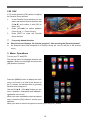
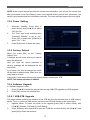
Start: Press [OK] to start upgrade.
Once the file has been loaded, it requires the conformity to end the upgrading process,
writing into the STB “Are you sure to burn flash?”. Press [OK] to upgrade the STB. In case
during the reading of the file, it is corrupted or it would be a not appropriated for this model
of STB, an alert message would appear “Error reading the USB disk”.
5.
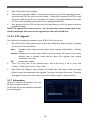
After pressing [OK] the STB will write into the Flash memory, and it will reboot to end the
upgrading process.
NOTE: The upgrade file is the binary file, *.bin. Only the files, which extend name is bin,
would be displayed. User need put the upgrade file under root of USB card.
3.3.6.2 OTA Upgrade
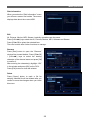
This function can upgrade the software of your STB by OTA (over the air).
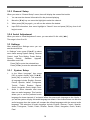
1.
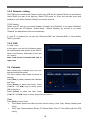
Auto OTA Config: Press [OK] to select directly with [CH▲/▼] to select the type of upgrade
you have Off, Auto and Confirm.
Auto:
Presetting timer mode and the system could upgrade automatically in standby
mode.
Confirm: Presetting timer mode, select confirm, then the system will detect if new version
software exist in standby mode and will allow OTA upgrade upon getting
confirmation from user.
Off:
No automatic update.
2.
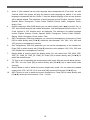
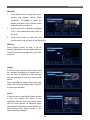
Time: The “Time” item is only available when “Auto OTA Config” is set to “Auto” and
“Confirm”. Press [OK] to set the “Time” menu.
3.
Start: Select the Software, User Interface and Default DB, Then select “Start” and press
[Enter] to begin the download of the upgrade. This may need about 30 minutes. Therefore
we suggest using of this function only if you don’t intend to watch TV during this time.
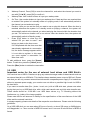
3.3.7 Information
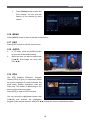
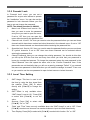
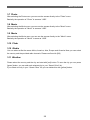
When you select the “Information” menu you
will see a screen like beside.
On the right of the screen displays data about
the current system.
18