1
DigiTerra Explorer v5 ®
User Guide © Copyright 1996-2008, DigiTerra Ltd.
_____________________________________________________________________________________________________________________________________________________________________________________
USING THE PROGRAM ON THE DESKTOP YOU CAN SELECT
BUTTONS: ZOOM IN=1(NUMERICAL) ; ZOOM OUT=2 (NUMERICAL)
THROUGH THE FOLLOWING
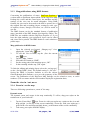
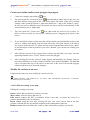
Zoom Window
The „Zoom window” tool zooms the area assigned as a window
to the size of the boundary box. Dragging the window, the
program counts and displays the size and perimeter of the
window. Drag your stylus on the touch-screen to select the area
of the window.
1.
2.
3.
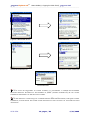
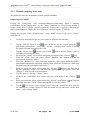
Tap the „Zoom windows”
icon.
Place your stylus to a point of the displayed view and
drag through the screen diagonally as if you draw the
diagonal of a tetragon.
Take away your stylus form the screen.
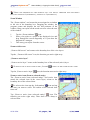
Zoom to full screen
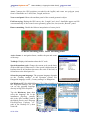
„Zoom to full screen” tool zooms to the boundary box of the view layers.
Tap the „ Zoom to full screen” icon, the function gets active right away.
„Zoom to active layer”
„Zoom to active layer” zooms to the boundary box of the selected (active) layer.
TO SELECT THE ACTIVE LAYER ON THE „LAYERS”
Tap the „Zoom to active layer”
PANEL TAP THE NAME OF THE LAYER.
icon, the function turns active right away.
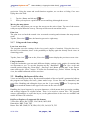
Zoom to active item (Zoom to selected entity)
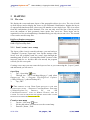
The „Zoom to active item (selected entity)” tool (active item
means the selected item in the vector layer) zooms to the
boundary box of the selected item.
To select active item tap the „Information”
icon and tap
the item you want to select. The outline of the selected item
turns red.
Tap „Zoom to active item (selected entity)”
icon. The
function gets active right away. There have to be always a
selected item.
V5.8.3.20.
17. pages / 64
4/21/2008