1
(1) Specifications
3.5” SATA I/II/III HDD/SSD (Must be
RAID qualified. Check with mfg.)
Supported Drives
(5) RAID Modes
(3) Inserting or Removing Drives
Inserting: Gently pull the lever and open the door. Insert/remove
drive into bay. To close, pull the lever and push the door all the way
closed. Release the lever when the door is closed.
Locking: Use the included key to lock the door if desired.
JBOD (Clear) is simply is a collection of drives that are recognized as
separate drives by the OS. JBOD provides no performance increase or
redundancy. This is the default setting.
(4) Setup
8.25 x 4.5 x 5.0 inches
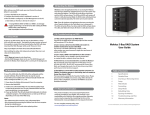
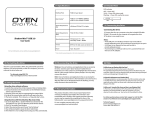
Package Includes: Mobius 2-Bay, USB 3.0 cable, FW800 cable,
eSATA cable, power cord, user guide, key set
(2) Detailed View
JBOD
RAID 0
RAID 1
COMBINE
5. Power Button
6. RAID Switch
7. Set Button
8. Drive Bay
• RAID 0 will be viewed as one single storage unit. If one disk in the RAID
System fails, all data in installed disks will be lost.
RAID 1 (Mirroring) consists of two drives storing duplicate copies of the
same data. In this mode, the data is simultaneously written to two disks.
The speed of operation is slow in comparison to RAID 0.
Windows XP/7/8 or higher
Mac OS 10.4 or higher
1. Door Latch
2. Door Lock
3. Drive LEDs
4. Blue Power LED
combines data evenly across both drives simultaneously; dramatically
increasing performance.
• The total capacity = smallest drive x the total number of drives. For
example, if the smallest drive is 500GB and the other is 2TB, the total
capacity will be 1TB (500 x 2).
RAID 0 Striping
RAID 1 Mirroring
JBOD
COMBINE
RAID Modes
RAID 0 (Striping) is a non-redundant data mapping technique. It
1. 1394b FW800 Ports
2. USB 3.0 Port
3. 100-240VAC Power Input
4. eSATA Port
The default mode is JBOD. To set a new mode, perform these steps:
Unlike Striping, it writes data to the first drive until it reaches full capacity.
When the first disk reaches full capacity, data is written to the second disk.
Spanning does not increase performance or safety.
If changing RAID modes, you first must perform a “Clear” procedure
to remove the previous RAID mode.
After setting a new RAID mode, you must format the volume
before it is accessible.
Clear Procedure:
1. Set the switch on the Mobius to JBOD.
2. Connect the Mobius to the host computer.
3. Press the MODE button while turning on the power.
4. Hold the MODE button for 7-10 seconds.
5. Release the MODE button. Any previous RAID mode is removed
and the drives are now set for JBOD mode.
To format using Windows:
http://oyendigital.com/windows-reformat.html
State
Drive 1 LED
Drive 2 LED
Steady blue
Steady blue
Blinking blue
Steady red or purple
Off
Slow blink twice per second
Blinking blue
Steady red or purple
Off
Slow blink twice per second
Note: The Drive LEDs will be OFF when the Mobius is not connected
to a computer.
(6) Formatting
To format using MAC OS:
http://oyendigital.com/mac-reformat.html
Note: The drive can be used on both Windows and Mac
systems by formatting the drive as “MS-DOS (FAT32)” or
“exFAT.” Instructions are provided in the Mac OS link above.
If using RAID 0 we recommend performing a low level
format after setting the RAID. Please refer to the following:
http://oyendigital.com/low-level-format
LED indicators
Powered & ready
Read/Write activity
Drive Error or No Drive
HDD Sleep
RAID 1 Rebuilding
Combine (Span) combines both hard drives into a single logical unit.
Set RAID Procedure:
1. Set the switch on the Mobius to the desired mode.
2. Connect the Mobius to the host computer.
3. Press & hold the MODE button while turning on the power.
4. Continue holding the MODE button for 7-10 seconds.
5. Release the MODE button. The RAID mode is now configured.
Set the RAID switch to
the desired mode.
JBOD
RAID 0
RAID 1
COMBINE
Press and hold MODE button
and turn on the power.