1
Fixed Assets & Depreciation System (FADS) User Manual
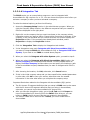
1.2.2.1.2 GL Tab
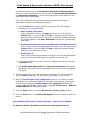
During initial company setup, it is important to define the segments for the GL
Account IDs that you will create either in FADS or in AccountMate for SQL,
depending on the integration option that you will select later on. Refer to 1.2.2.1.4
Integration Tab for a detailed discussion on integration options.
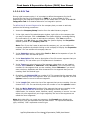
To define the GL Account Segment for the company that you want to activate,
perform the following procedures:
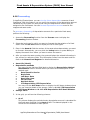
1. Access the Company Setup function from the administrator program.
2. In the right panel of the administrator window, right click on the company that
you want to activate. Click on Activate. The system displays a message asking
for confirmation if you want to activate the company. Click Yes to confirm;
otherwise, click No. When you select Yes, the system displays the Properties
window opened to the Company Info tab.
Note: Even if you don’t want to activate the company yet, you can define the
company properties by double clicking on the company to display the Properties
window. You can activate the company later on.
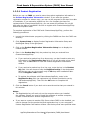
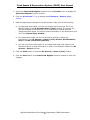
3. In the Separator section, select either Dash or Dot as the separator of your GL
Account IDs. Mark the desired option.
4. In the Description field, enter a description of the GL account segment that you
are creating. You can enter up to 20 alphanumeric characters.
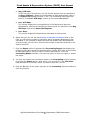
5. In the Type area, select the type of the segment values that you are creating.
Choose either Numeric or Character. Select Numeric if you would enter only
numbers for the segment that you are creating. Select Character if you would
enter numbers, alphabets and other characters for the segment that you are
creating. Mark the desired type.
6. By default, the Segment ID has a value of 1. This means that the segment that
you are creating is the first segment. After you create the first segment, click the
spinner button to move to the next segment.
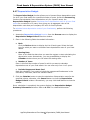
7. In the Length field, enter the size of the segment that you are creating. You can
choose from 1-50. You can directly enter the number or use the spinner button.
8. Mark the Major Segment checkbox if the segment that you are creating is the
segment that defines the GL account ID according to the GL Accounts
classification, for example, asset, liabilities, equity, expenses or income. You can
select only one segment as your major segment; the rest of the segments are
called the minor segments.
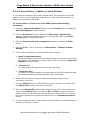
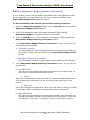
Note: Note that after you create one segment, the Example area displays the
segment type, size and separator that you had chosen. “!!!”represents character
type; whereas, “999” represents numeric type.
AppFinity/CharterHouse Fixed Assets & Depreciation (FADS) User Manual
21