1
Ridom EpiCompare User Guide
3. Installing Ridom EpiCompare
System Requirements
•
An installed Java Runtime Environment 1.5 or higher is required to run Ridom EpiCompare.
Java is freely available from www.java.com.
•
An installed PDF Viewer (e.g., Adobe Reader, www.adobe.com) is needed for viewing the
manual.
•
Ridom EpiCompare was tested with Java 1.5 on Windows NT4.0, 2000, XP, and Vista.
Installing Instructions
•
Download from www.ridom.de the latest version of Ridom EpiCompare.
•
Double click the downloaded file and follow the on-screen instructions (please remember, you
have to install Java first before you are able to install Ridom EpiCompare).
•
Ridom EpiCompare can now be started by clicking the software's icon (in the installed directory,
on the desktop or in the Start Menu).
Updating the Software
A download option for on-line updates is integrated into the software (Help menu). For disabling
the auto-update feature or for proxy-settings, use the Preferences-dialogue from the File menu.
Ridom EpiCompare Help
Use the button
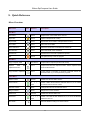
in the Help menu to view this PDF-document (the document includes a Quick
Reference with menu and keyboard shortcuts).
4. Getting Started
Keyboard Shortcuts
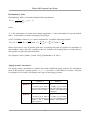
Frequent occurring actions can be conveniently invoked by keyboard shortcuts. All menu
commands can also be invoked (e.g., if no mouse is available) by using the Alt-key in combination
with a character as indicated by underscore in the menu (e.g., for the command “Open...” press
Alt+F, O).
3