1
GPS Newsletter – SKI-Pro
A one page weekly newsletter on System 500 GPS, 01/03, January 22,2001
Flexible Data Output
We quite often receive questions in Survey GPS Support
asking if it possible to output
data from the Sensor or SKIPro in a particular format.
This particular format may
be needed to import point
data into a CAD package, or to
import baseline data into a 3rd
party adjustment package or a
user may require a simple report style output containing
point Ids, co-ordinates, code
information, CQ and DOP values, etc.
Defining the Format of Individual Export Variables
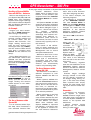
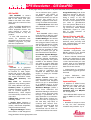
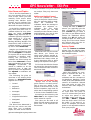
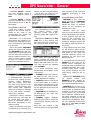
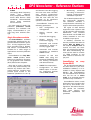
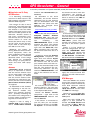
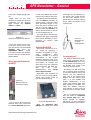
Double click on an export
variable to access the Formatting Options for Export Variable dialog.
Here, the alignment, signing,
length, precision and the fill
character for that export variable can be defined.
These output formats are all
possible by using a Format
File.
This allows different export
formats to be defined for individual export variables. For
example, a user could require
that co-ordinates are output to
3 decimal places and are left
aligned, whereas the CQ
should be output to 2 decimal
places and right aligned.
Format Files and the Format
Manager
Setting Default Values for
Variables
Format Files are created
within the Format Manager
(Format Manager is installed
automatically with SKI-Pro).
It could be that not every
export variable is always output. For example, a user may
usually assign a code to most
surveyed points, but he may
choose not to code some
points (or may have forgotten
to code them).
A format file is basically a
“template” or an output
“mask”. When surveyed data
is exported from the Sensor
or SKI-Pro, the data is then
output in the format as defined by the format file.
A format file needs only to
be created once and then is
simply used as required.
The Getting Started with
the Format Manager manual
is included on the SKI-Pro CD.
This describes the use of the
Format Manager and contains
3 simple exercises to create
different format files.
A format file can be written
to output this collected data.
However, the user wishes that
if a point was not coded in the
field, then the words No Code
should be output for that
point.
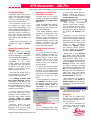
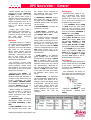
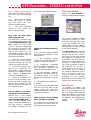
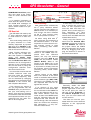
This is possible by accessing
the Settings dialog box (click
the settings icon) and define
the String default value to
“No Code” (by default this
value is “--------“.
alastair.green@leica.geosystems.com
The sorting, co-ordinate
classes (and other parameters) of the data and the selection of format file to be used
during export can be selected
by clicking the Settings button.
However, if a user tends to
use more than one format file
and/or uses different settings
depending on the data to be
exported, then it may become
tiring to keep constantly
clicking the Settings button
and defining these settings.
For this reason, it is possible
to define Export Templates.
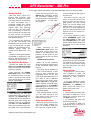
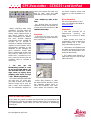
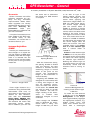
Right click in the Settings
drop down menu and choose
New from the drop down box
that appears. Now enter a
name for this export template
(such as GSI16). Then click the
Settings button and define
the export settings including
the format file and then click
OK. This has defined the parameters for that export template. You may now define
additional templates (such as
Sokkia SDR33) if required.
Now whenever you need to
export data in the GSI16 or
Sokkia SDR33 format, simply
choose the appropriate export
template.
All export settings for that
template are then used.
It is very simple to make a
format file with many users
creating many different format files have been created
including GSI8 and GSI16,
Geodimeter, Zeiss and Sokkia
formats…..
However, there are also
some features of the Format
Manager and Format Files
that are not so well known.
a format file within SKI-Pro.
Simply choose to export a
Project or Co-ordinate Set as
Custom ASCII (*.cst).
Remember
Using a Format File within
SKI-Pro
It is straightforward and
most people know how to use
• Data can be output form
the sensor or SKI-Pro in most
common data formats by using a format file
• Use export templates for
commonly used format files
and export settings within
SKI-Pro