1
4.2. NOTES
21
G
Use the commands available in the Format Menu (section B.5). A selection of
common commands can be accessed from the right-click contextual menu.
G
Apply a note style preset using the Format Note Style Apply Note Style submenu (also available in the contextual menu).
See Also:
G
The Inspector (chapter 10)
G
Formatting and Appearance (chapter 6)
G
Note Style Presets (section 6.3)
4.2.10 Aligning Notes
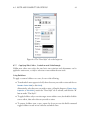
Notes can be aligned along several different edges or axes:
1. Select the notes you wish to align. The first note you select will not be moved—
other selected notes will be moved to align with the note that was selected first.
2. Go to the Notes Align sub-menu and then choose from “Left Edges”, “Right
Edges”, “Top Edges” or “Bottom Edges”.
3. Aligning by “Horizontal Centers” will cause the notes to end up in a column,
aligned by their horizontal width. Aligning by “Vertical Centers” will result in a
row, with their vertical middles used to determine the placements.
If you want to arrange notes into a single column, it is often more useful to “stack”
them rather than align them (section 4.5).
4.2.11 Arranging Overlapping Notes
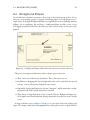
You will most likely wish to avoid having notes arranged on top of each other, as this will
often result in text being obscured and thus make things difficult to read. However, there
may be occasions where you have a note partially overlapping another and you wish to
arrange their front-to-back order, so that the note underneath is brought to the front, or
vice versa. This is easy to do.
Bring a note partially obscured by other notes to the front:
1. Select the note you wish to bring to the front.