1
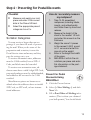
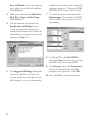
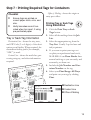
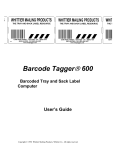
Step 7 - Printing Required Tags for Containers Checklist Ensure tags are printed on correct paper stock, color, and size. Verify barcodes are not truncated when torn apart, if using pre-perforated paper. Tray or Sack Tag Information Destination Line - shows the city, state, and ZIP Code (3 or 5 digits) of the destination postal facility. When required, the destination facility prefix (for example, “ADC”) is used. Content Line - shows the mail class, processing category, and other information required. Office of Mailing - shows the origin or entry post office. Printing Tray or Sack Tags Using MAILERS+4 1. Click the Print Tray or Sack Tags button. 2. Select all the mailings from the Job List. 3. Select the appropriate tag from the Tray List. Usually 2-up for laser and ink jet printers. 4. If you want to print your tags out on plain, non-perforated card stock, MAILERS+4 can Draw Border lines around each tag so you can easily, and accurately, cut them out. 5. Include the Job Number and Container Number on the tag. 6. Select your Print Range: All Trays and print out your tags by clicking Print. Destination Line Content Line Office of Mailing 19