1
Contents
Contents
Chapter 1
Preface.................................................................................................................5
Trademarks.................................................................................................6
Notes for the reader...................................................................................7
Chapter 2
Océ Posterizer Pro - Presentation ....................................................................9
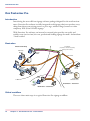
Océ Posterizer Pro....................................................................................10
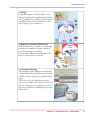
The Data Entry module............................................................................13
Get to know the main concepts..............................................................14
Chapter 3
Configure Data Entry .......................................................................................17
Configure the Data Entry settings ..........................................................18
Interface of the Data Entry module...................................................18
Check the application folders............................................................20
Set the customized settings and the user interface preferences....21
Set the application default behavior ................................................22
Configure a printer for direct print....................................................24
Install a printer for a direct print..................................................24
Chapter 4
Basic operations to create and send your first poster for print...................27
Create and send your first poster to the Print Manager.......................28
You can also..............................................................................................30
Chapter 5
Configure the advanced settings to create a poster.....................................33
Create or open a poster ..........................................................................34
Open a template.................................................................................34
Open a poster.....................................................................................37
Adjust the poster properties..............................................................38
Resize a poster....................................................................................39
Create a connection to a database..........................................................40
Connect to a CSV or Excel file...........................................................40
Connect to a database........................................................................42
Request and install the Automation option ....................................44
Set the content of the poster ..................................................................45
Fill in the fields of a poster................................................................45
Preview a poster ................................................................................48
Create a set of posters (associated templates)................................49
3