1
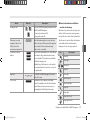
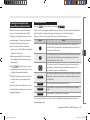
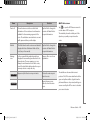
Buttons and other controls on the
screen
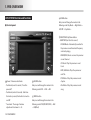
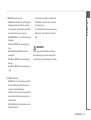
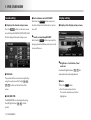
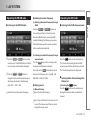
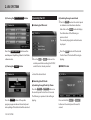
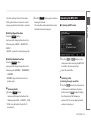
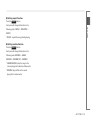
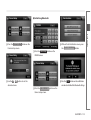
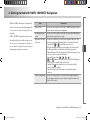
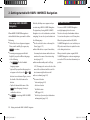
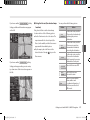
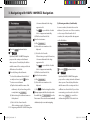
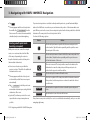
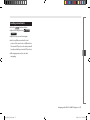
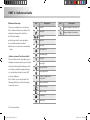
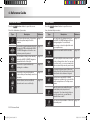
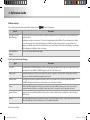
The functions of the hardware buttons are the following:
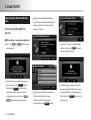
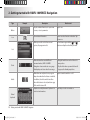
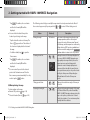
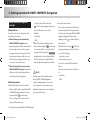
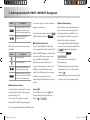
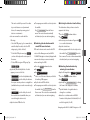
When you are using HAVN-100HMCIS
Navigation, you usually tap buttons on the
4
5
6
7
2
touch screen.
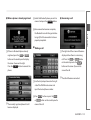
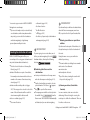
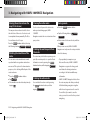
You only need to confirm selections or
changes in HAVN-100HMCIS Navigation if the
application needs to restart, it needs to
1
perform a major reconfiguration, or you are
3
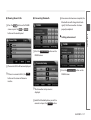
Otherwise, HAVN-100HMCIS Navigation saves
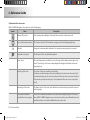
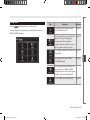
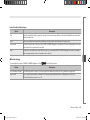
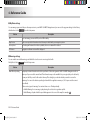
Button
Action
1
Adjusts the sound volume level
2
Cycles through the following modes:
• Daytime colours
• Night colours
• Screen turned off
3
Scales the map
4
Opens the Map screen.
If the Map screen is open, moves the map back
to the current GPS position.
5
Opens the Destination menu.
6
Opens the Route menu.
7
Opens the Setup menu.
Screen button equivalent
your selections and applies the new settings
without confirmation as soon as you use the
controls.
and
Getting started with HAVN-100HMCIS Navigation
about to lose some of your data or settings.
Getting started with HAVN-100HMCIS Navigation 2-7
HM_[영어]_Part2.indd 7
2008-12-19 오후 3:34:56