1
NextOffice
3.
Chapter 4 NextOffice Calc
Single click on the drop-down arrow in the column heading and select an item. Only those
rows whose contents meet the filter criteria are displayed. The other rows will be hidden.
Using Standard Filtering
For standard filter, you can set a maximum of 3 filtering criteria.
1.
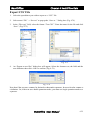
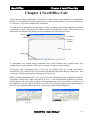
First select the area you wish to use standard filter on. (Fig. 4-69)
2.
Select menu “Data” → “Filter” → “Standard Filter” to bring up the “Standard Filter” dialog
box. (Fig. 4-70)
Fig. 4-70
Fig. 4-69
3.
For example, you may want to filter out from some weather data, such as only temperatures
exceeding 20 degrees, humidities greater than 80%, and months with rainfall exceeding
80mm. You can input these criteria in the relevant fields in the dialog box.
4.
Finally click <OK> to confirm.
You can also copy the filter results into another cell:
Click on “More” button for more filter options. You can check the “Copy results to...” check box
then click on the “Shrink” icon on the far right. The dialog box will shrink and you can select the
cell you wish to copy the results into. Then you can click on the icon on the far right of the
dialog box again to resize its size. Finally click <OK>.
NextOffice User Manual
4-21