1
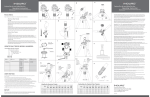
“Remarkable Technology, Easy To Use” Caregiv er: lets you select the emergency contact from the device’s contact list. This person will be the one who’ll receive the emergency alerts and the only one who can remotely request information regarding the user’s location; Quick Contacts : Here, the caregiver can specify other contacts that will be available for the user to call from within the application, by using the Call a Friend functionality. On this screen he can also edit/remove contacts from the list; S afe Zone: this option lets the caregiver specify the desired safe zone for the user. That is, the safe place (usually the user’s home) and the safety radius around it. First, the home location must be set. To do so, the caregiver can use his current location, search for a specific address or set it himself on a map, swiping across or clicking the map until it centres the user’s safe place. At this point, he should press the Set this location as Home option. Once this is complete, a safe zone with a default radius will be presented, but this can be changed, if desired (safety radius can never be smaller than 100m though). The safety radius delimits the user’s safety area (once the user crosses it, the application will assume him to be lost or disoriented, and act accordingly). When complete, press the Confirm Changes button to save your changes or the back key if you wish to cancel. After having set a Safe Zone, the next time the user chooses this option, he will be able to just view the current settings, alter the safety radius or alter the current home location. Also, if a Street View picture is available for the current safe place, it will be displayed at the top of the screen so that the user can see if he wants to use it or not (subtle changes in the safe place location can help improve the Street View’s picture accuracy). Rua Alfredo Allen 455 4200-135, Porto - PORTUGAL www.aicos.fraunhofer.pt 3