1
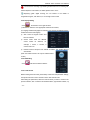
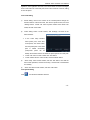
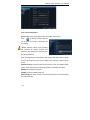
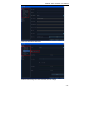
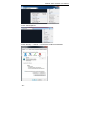
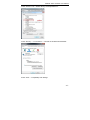
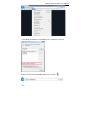
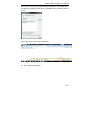
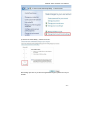
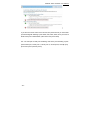
Network Video Recorder User Manual on PC; 2) Audio format: adjust audio format to G.711 via IE or IP camera BYO client app on PC; 3) NVR: Setting---Channel---Video Parameter, choose the corresponding channel and change stream type to Video & Audio; 4) Whether Aout port on NVR rear panel gets access to speaker working properly. New HDD added but video still recorded in previous HDDs 1) Formatting all HDDs; 2) Shut down and unplug former HDDs, then only insert new HDD and after half an hour recording, shut down and insert the former ones. IE access: fail to install plug-in without image out NVR: Setting---Network---Network Setting, check out IP address, Remote Port, HTTP Port. First to fix LAN access: 1) WinXP: Please install VC++2008 from Microsoft; 2) Win7 & Win8: Click “Start” to choose current login user as “Administrator”, tick Control Panel---User Accounts and Family Safety---Change User Account Control Setting, then lower down to “Never notify”. Open IE browser and press “Tools” to see “Internet Options”---“Security”---“Custom Level”, adjust ActiveX controls and plugins to “Enable” or “Prompt” and “Disable” “Binary and script behaviors” alone. Follow the same setting step in “Local Intranet” and tick “OK”, restart IE browser. Finally press “Alt” to see “Tools” and tick “Compability View Setting” to check “Display all websites in Compability View” . Click “OK” and reopen IE browser. 3) Check whether PC had installed ActiveX in previous time. Close IE browser and go to “Program Files[WinXP]” folder in C Disk, then delete “dvr_activex” whole folder, while deleting “dvr_activex” folder in “Program Files(x86)[Win7&8]”, then install new activex. 4) - 62 - After successfully installing activex, input NVR IP address on IE