1
Stop the coding session
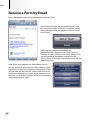
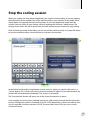
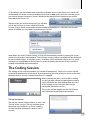
When your coding has been done (completed), you stop the current coding session by tapping
the Stop button on the toolbar. You will be asked to confirm your intention in the dialog sheet
which appears by tapping the Stop Coding button. If you have tapped the Stop button by
mistake, you may return to your coding screen by tapping the Continue Coding button. The
coding session timer will still be active until you have confirmed your intention to stop coding.
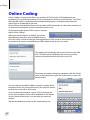
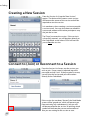
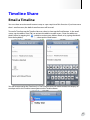
After confirming the end of the coding session you will be asked to specify an Output File Name
to save the created timeline. Saved timelines are stored in the memory.
A
B
Figure 8
At the left hand side of the navigation bar on the screen in which you specify a file name, is a
”Cancel” button. This will take you to the screen illustrated in b) above. If you select Remove, the
timeline file will be deleted immediately. This action is irretrievable.
The “Save timeline” button will return you to the screen illustrated in a) above
Once a coding session has been stopped, been given a file name and saved; the file will remain
on the iCODA device until the Command Centre in CODA downloads it. You are not able to view
a list of saved files which are stored in iCODA. To remove files from iCODA you must use the
Command Centre.
21