1
Compliance Module
Press the Right Arrow key to display the : Monitor Everyday option. Press the Enter key to
display the Daily Start Time Window. Use the Right Arrow key to move the cursor and the Up
Arrow key to change the hour and minute settings. Press the Enter key to save your start time.
The Daily Stop Time Window appears. Use the Right Arrow key to move the cursor and the Up
Arrow key to change the daily stop time. Press the Enter key to save your changes. Press the
Start Monitor key to enter the timer mode. The Minimate Plus is now set to start and stop
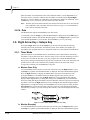
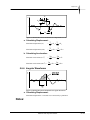
monitoring operations automatically at the same time every day. The monitor displays the
following window:
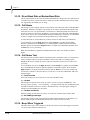
Figure 3.15 Timer Mode Window − Monitor Everyday.
3.9.2. Daily Self Check
Use the Self Check mode for remote monitoring where you require a record indicating the monitor
was operating properly over a period of time.
Daily Self Check must be enabled for adjustment of the unit’s real-time clock speed. The Self
Check mode program operates when the monitor is in the monitor mode; the monitor temporarily
exits the monitor mode, at the same time each day specified by you, performs the check, and
returns to monitor mode. The results appear in a monitor log entry.
To select the self check mode, use the Right Arrow key and simultaneously press the Setups key,
then press Enter to except the Timer Mode setting: Daily Self Check mode is now available – use
the Up Arrow or Right Arrow to toggle between Enabled and Disabled options, and Enter to
save the desired setting. If you select Enabled, the next screen prompts for a time to be entered.
Use the Right Arrow to move the cursor between hours and minutes, and the Up Arrow to
change the time, then press Enter to save your changes.
3.9.3. Sensorcheck (Compliance Module Only)
The Sensorcheck Window allows you to choose when the Sensorcheck program runs
automatically to test the Minimate Plus and its transducer and microphone sensors. You can run
Sensorcheck manually by pressing the Test key. You can choose not to run Sensorcheck, to run
Sensorcheck after recording each event, or only once before monitoring starts. If you choose
Disabled, Sensorcheck does not run and the sensors are not checked. If you choose After Each
Event, Sensorcheck runs after recording each event and shows the results on the Minimate Plus
display. If you choose Before Monitoring Starts, Sensorcheck runs once before monitoring starts,
when you enter the monitor mode. The results of this single Sensorcheck appear with each event
recorded during the monitoring session. This reduces processing time, by not having to run
Sensorcheck for each event, and speeds up recording especially when using the continuous record
mode.
To set when to run Sensorcheck, press the Right Arrow key and the Setups key at the same time
when the Main Window is displayed. Press the Enter key to scroll through the windows until the
Sensorcheck Window appears. Press the Right Arrow key to display the Disabled, Before
Monitoring, or After Each Event choices. Press the Enter key to select a setting when it appears
on the display.
3.9.4. Measurement System (Compliance Module Only)
The Minimate Plus uses the Metric or the Imperial measurement system.
Minimate Plus Operator Manual
3–15