1
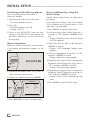
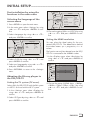
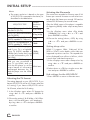
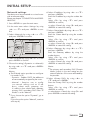
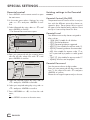
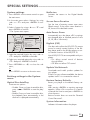
INITIAL SETUP --------------------------------------------------------------------------------------------------------------------Note: 7 The output resolution is based on the type of LED/LCD-TV connected to the device, as described in the table below: LED/LCD-TV TYPE If your TV is a standard-definition PAL TV (SD TV) If your TV is an enhanced-definition TV (EDTV) If your TV is a high-definition TV (HDTV) capable of 720p only If your TV is a high-definition TV (HDTV) capable of 1080i only If your TV is HDMI equipped, and if your TV is a high-definition TV (HDTV) capable of 1080p [any frame rate], and you are connected to your TV via HDMI, If your TV is HDMI equipped, and you are connected to your TV via HDMI, and you wish the BD player to set the output based on information exchanged between the TV and the player over the HDMI cable. Correct Resolution Setting 576i/480i 576p/480p 720p 1080i The movies are recorded on film at a rate of 24 frames per second. However not all televisions can display 24 frames per second. Off can be selected for 50 frames per second format. Only the HDMI output of the player is capable of supporting1080 p video output at any frame rate. 1In the »Display« menu select »Film Mode (1080p24)« by using »A« or »S« and press »ENTER« to confirm. 2Choose the setting (»Auto«, »Off«) by using »A« or »S« and press »ENTER« to confirm. Setting deep color 1080p (HDMI) HDMI auto Selecting the TV format The setting depends on your LED/LCD-TV. If you have a LED/LCD-TV with a 4:3 format, select the 4:3 setting; if you have a LED/LCD-TV with a 16:9 format, select the 16:9 setting. 1In the »Display« menu select »TV Aspect« by using »A« or »S« and press »ENTER« to confirm. 2Choose the setting (»16:9 Wide«, »16:9 Pillarbox«, »4:3 Pan and Scan«, »4:3 Letterbox«) by using »A« or »S« and press »ENTER« to confirm. 14 ENGLISH Selecting the film mode HDMI 1.3 supports 10-bit, 12-bit and 16- bit (RGB or YCbCr) color depths while 8-bit was supported in previous versions. This expands the colors displayed from millions to billions, which is much more vivid than the previous. 1In the »Display« menu select »Deep color« by using »A« or »S« and press »ENTER« to confirm. 2Select »Auto« or »Off« by using the cursor buttons and press »ENTER« to confirm. End settings for the LED/LCD-TV 1Press »SETUP« to return to the main menu.